Table of Contents >> Show >> Hide
- What Screen Orientation Lock Does on iPad
- How to Lock iPad Screen Orientation: 13 Steps
- How to Unlock iPad Screen Rotation Later
- Why Your iPad Screen Still Won’t Rotate
- 1. The app may not support rotation
- 2. The side switch may be overriding things on older models
- 3. You may be opening the wrong control area
- 4. Restart the iPad
- 5. Update iPadOS if the problem keeps happening
- 6. Remove accessories that may be affecting how you hold the device
- 7. Consider hardware trouble if nothing works
- Best Times to Use Orientation Lock
- Quick FAQ About iPad Rotation Lock
- Real-World Experiences With iPad Orientation Lock
- Final Thoughts
If your iPad keeps flipping from portrait to landscape the second you shift on the couch, welcome to one of modern life’s smallest but most persistent annoyances. You are trying to read, cook, watch, draw, or answer one email you absolutely did not want to answer, and suddenly the screen swings sideways like it has its own agenda.
The good news is that locking iPad screen orientation is easy once you know where Apple tucked the control. The even better news is that you do not need to wrestle with a maze of settings. In most cases, the fix lives in Control Center. On some older iPad models, a physical side switch may also handle rotation lock. This guide walks you through the exact process, explains what to do if the button seems to have vanished, and helps you troubleshoot when your iPad still refuses to cooperate.
Below, you will find a simple 13-step method, plus practical tips, real-world use cases, and extra experiences that make this topic much more useful than a one-line “tap the icon” answer. Because yes, technically it is simple. But real life is messy, and iPads are often used while lying down, traveling, cooking, presenting, or handing them to children with very strong opinions and very sticky fingers.
What Screen Orientation Lock Does on iPad
Screen orientation lock freezes your iPad display so it stops rotating when you physically turn the device. That means if you want to stay in portrait while reading an ebook in bed, or stay in landscape while watching a recipe video in the kitchen, you can lock the screen and keep it from spinning around every time gravity gets creative.
This setting is especially handy for people who use their iPad for streaming, note-taking, digital art, browsing, presentations, or reading while reclining. In short, it is one of those small settings that makes the device feel smarter, calmer, and less dramatic.
How to Lock iPad Screen Orientation: 13 Steps
- Wake your iPad and unlock it.
Start from the Home Screen or while an app is open. You do not need to dig through deep settings menus first.
- Decide which orientation you want to keep.
Hold the iPad in portrait or landscape before you lock it. Think of this as choosing your screen’s “stay like this” moment.
- Place your finger near the top-right corner of the screen.
On current iPad models and current iPadOS versions, that is where you begin opening Control Center.
- Swipe down from the top-right corner.
This opens Control Center, where Apple keeps quick controls like brightness, volume, Wi-Fi, and Rotation Lock.
- Look for the Rotation Lock icon.
The icon looks like a padlock with a circular arrow around it. It is small, but it is the hero of this story.
- Tap the Rotation Lock icon once.
This turns screen orientation lock on. If the icon highlights, you have just told your iPad to stop twirling like a confused weather vane.
- Close Control Center.
Swipe it away or tap outside the panel to return to your app or Home Screen.
- Rotate the iPad slightly to test it.
If the screen stays in place instead of flipping, the lock is working. Congratulations: your iPad has accepted boundaries.
- Check for the Orientation Lock status icon if supported.
Some iPad models show an Orientation Lock icon in the status area, which gives you a quick visual reminder that rotation is locked.
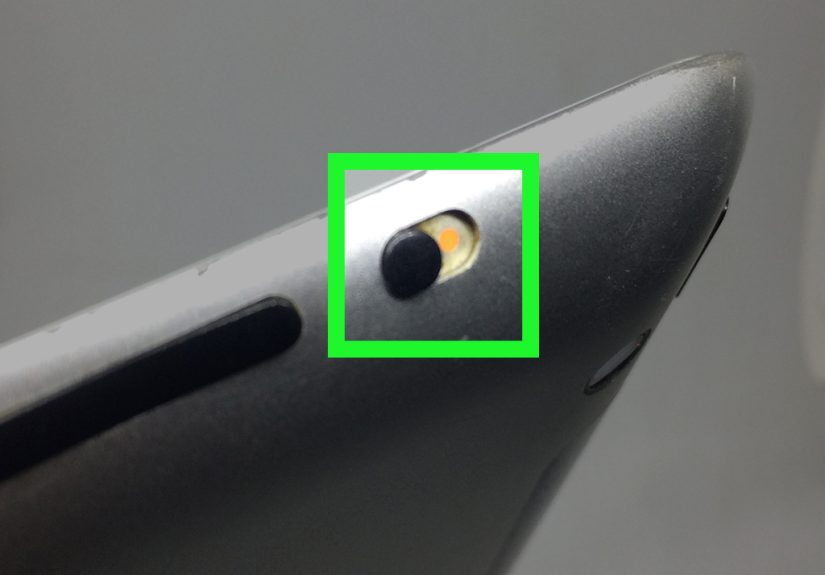
- If you do not see the Rotation Lock button, check whether your iPad has a side switch.
Certain older iPad models include a physical side switch that can control mute or rotation lock.
- Open the Settings app on older side-switch models.
If your iPad has that physical switch, head to Settings > General to check how the switch is assigned.
- Under “Use Side Switch To,” select “Lock Rotation” if available.
This makes the side switch act as your screen orientation lock control instead of a mute toggle.
- Flip the side switch to lock or unlock rotation.
Once configured, that physical switch can control whether the iPad rotates. It is old-school, but still effective.
How to Unlock iPad Screen Rotation Later
Unlocking the screen is basically the same process in reverse. Open Control Center by swiping down from the top-right corner, then tap the Rotation Lock icon again to turn it off. Once disabled, your iPad should rotate normally when you turn it.
If you are using an older iPad with a side switch set to rotation lock, simply flip the switch back. After that, the screen should respond to movement again in apps that support both portrait and landscape views.
Why Your iPad Screen Still Won’t Rotate
Sometimes the issue is not the lock at all. If your iPad still will not rotate after you turn Rotation Lock off, try these common fixes.
1. The app may not support rotation
Not every app rotates in every direction. Some apps are portrait-only. Others support landscape only in certain views. A quick way to test is to open Safari or Messages and rotate the iPad there. If rotation works in those apps, the problem is likely with the original app, not the tablet itself.
2. The side switch may be overriding things on older models
If you have an older iPad with a physical side switch, it may be set to lock rotation. Check Settings > General and see whether the switch is assigned to Lock Rotation or Mute. That little switch can quietly cause a lot of confusion.
3. You may be opening the wrong control area
On current iPads, Control Center opens from the top-right corner. If you keep swiping from somewhere else and nothing useful appears, it is less a hardware failure and more a finger-placement negotiation.
4. Restart the iPad
If rotation should be working but is not, restart the device. This can fix temporary bugs, stuck motion behavior, and strange app states. It is boring advice because it works annoyingly often.
5. Update iPadOS if the problem keeps happening
Software bugs can interfere with motion controls and screen behavior. If your iPad has a pending update, installing it may fix weird rotation glitches.
6. Remove accessories that may be affecting how you hold the device
Heavy keyboard cases, magnetic stands, and awkward mounts sometimes make it harder to tell whether the iPad is being held in a way that triggers the orientation sensor cleanly. This is not always the issue, but it is worth checking.
7. Consider hardware trouble if nothing works
If the screen never rotates in any supported app, even after you disable lock, restart, and update, the motion sensors could be misbehaving. At that point, official support or repair advice is the smarter move.
Best Times to Use Orientation Lock
Knowing how to lock iPad screen orientation is useful. Knowing when to use it is what makes you feel like you have your life together.
Reading in bed
You tilt your head. The iPad tilts. The screen flips. You mutter something unprintable. Orientation lock ends that cycle immediately.
Watching videos while cooking
When your iPad is propped beside a cutting board, you want the display to stay put. The last thing you need while handling garlic and olive oil is a surprise layout change.
Using a stand or keyboard case
If your iPad is docked at a desk, locked orientation keeps the display stable during work sessions, video calls, or side-by-side app use.
Giving the iPad to a child
Children can rotate a device in ways that defy geometry. Locking the screen beforehand can prevent accidental flips during games, videos, and learning apps.
Presenting or sharing content
If you are showing slides, a portfolio, or images to someone else, a locked screen looks more polished and prevents awkward mid-demo spinning.
Quick FAQ About iPad Rotation Lock
Is Rotation Lock the same as locking the iPad?
No. Rotation Lock only controls whether the screen rotates. It does not lock the device, protect it with a passcode, or prevent someone from opening apps.
Can all iPads lock screen orientation?
Yes, but the method can vary. Most current iPads use Control Center. Certain older models may use a side switch, depending on settings.
Why can’t I find the Rotation Lock icon?
If it is not in Control Center, your iPad may be an older model with a side switch. Check Settings > General to see whether the switch is assigned to lock rotation.
Does landscape mode work in every app?
No. Some apps only support one orientation. Test with a common app like Safari if you are unsure whether the issue is the app or the iPad.
Real-World Experiences With iPad Orientation Lock
In real use, orientation lock often feels like one of those tiny features you ignore until the day it saves your sanity. A lot of people first discover it while reading in bed, which is perhaps the most honest test of tablet design. You settle in, prop the pillow just right, angle the screen to avoid glare, and the iPad suddenly rotates because you moved your wrist half an inch. That is usually the exact moment a person goes from “I don’t really mess with settings” to “Where is the lock icon and why has no one told me about this sooner?”
Another common experience happens in the kitchen. An iPad makes a great recipe screen until steam, timers, messy hands, and hurried glances enter the picture. If the device shifts from portrait to landscape while you are trying to check ingredient amounts, it can feel wildly inconvenient for such a small change. Locking the orientation before you begin cooking keeps the display stable, which means less tapping, less re-reading, and fewer moments of staring at the screen like it has personally betrayed your dinner plans.
Students and note-takers also notice the difference quickly. During class, meetings, or study sessions, an iPad is often balanced on a desk, lap, or keyboard case. Small bumps can cause the screen to rotate at exactly the wrong moment, especially when multitasking or annotating documents. Once orientation lock is enabled, the device feels more predictable. That predictability matters more than people realize. A screen that stays put lets you focus on the content instead of constantly adjusting the interface.
Travel is another place where the feature shines. On airplanes, trains, and long car rides, iPads get used in cramped positions that are not exactly ideal for motion sensors. You may be half-leaning, partially tucked into a window seat, and trying to watch a show without elbowing a stranger. In that situation, locking the screen orientation is less of a convenience and more of a peace treaty between you and your device.
Parents often end up loving this setting for a completely different reason. Kids do not hold tablets the way adults do. They tilt them, spin them, lay them flat, and occasionally treat them like steering wheels. Locking the screen before handing over the iPad can reduce complaints, accidental flips, and the universal child statement: “It’s broken,” when what they really mean is, “I rotated it into chaos.”
Even professionals benefit from it. Designers showing mockups, sales teams presenting decks, artists using reference images, and anyone joining video calls from an iPad all appreciate a screen that stays exactly where it belongs. It creates a smoother experience and a more polished impression. In practice, that is what orientation lock really offers: less friction. It is a small control, but it removes one of those repetitive annoyances that chip away at comfort over time.
Final Thoughts
If you have been wondering how to lock iPad screen orientation, the answer is refreshingly straightforward once you know where to look. On most current iPads, open Control Center, tap the Rotation Lock icon, and enjoy a screen that finally minds its business. On certain older models, the physical side switch may still handle the job.
The feature is simple, but the payoff is huge. Whether you are reading, cooking, traveling, presenting, studying, or keeping a child’s cartoon from spinning into an accidental abstract film, orientation lock makes the iPad easier to use. Sometimes the best tech tips are not flashy. They are the ones that quietly make everyday life smoother.