Table of Contents >> Show >> Hide
- Why iMessage Stopped Working in iOS 7
- Step 1: Check the Obvious Stuff First
- Step 2: Turn iMessage Off, Reset Network Settings, Then Turn It Back On
- Step 3: Update iOS 7 and Contact Apple or Your Carrier If Needed
- Common iOS 7 iMessage Problems and What They Mean
- Quick Checklist: The 3-Step Fix
- Real-World Experience: What Fixing iMessage in iOS 7 Often Felt Like
- Conclusion
- SEO Tags
Few things make an iPhone feel less magical than watching an iMessage sit there with a stubborn red exclamation point, as if your phone has suddenly become a very expensive paperweight with weather apps. If you updated to iOS 7 and iMessage stopped working, failed to send, stayed stuck on “Waiting for Activation,” or randomly turned your blue bubbles into green ones, you were not alone. The iOS 7 era brought a bold new design, thinner icons, more motion, and, for some users, an iMessage problem that felt like it had moved into the guest room and refused to leave.
The good news: many iMessage issues in iOS 7 can be fixed with three practical steps. The even better news: these fixes do not require a genius-level understanding of Apple servers, carrier settings, or why your phone insists on choosing drama before breakfast. This guide walks through a clean, simple process: check the basics, reset iMessage and network settings, then update iOS or escalate if needed.
Before we start, remember that iMessage needs several things to cooperate at the same time: an internet connection, Apple’s iMessage service, your Apple ID or phone number, correct date and time settings, and your carrier connection if your phone number is part of activation. When one piece misbehaves, the whole texting parade can wobble.
Why iMessage Stopped Working in iOS 7
iMessage problems in iOS 7 usually appeared in a few familiar ways. Some users could receive messages but not send them. Others saw “Not Delivered” even when Wi-Fi seemed fine. Some users got stuck during activation. A few found that messages sent from their email address instead of their phone number, which is always fun when your contacts ask, “Who is this?” and the answer is, unfortunately, you.
The issue became noticeable after early iOS 7 releases. Apple later addressed iMessage-related problems in iOS 7.0.3, including an issue where iMessage failed to send for some users and a bug that could prevent iMessage from activating. That means the most complete fix is not just poking random buttons and hoping the blue bubbles return. The best fix is a short troubleshooting sequence followed by a software update when available.
Step 1: Check the Obvious Stuff First
Yes, “check the basics” sounds boring. It is also the step that saves the most time. Many iMessage problems look like mysterious Apple wizardry but are really caused by weak Wi-Fi, cellular data being off, airplane mode, an Apple service outage, or incorrect Send & Receive settings.
Check your internet connection
iMessage is not the same as regular SMS. It sends messages through Apple’s service using Wi-Fi or cellular data. If your internet connection is weak, blocked, or sleeping on the job, iMessage may fail even if your phone still shows bars. Open Safari and load a fresh webpage. If the page does not load, iMessage is probably not the villain yet. Your connection is.
Try switching between Wi-Fi and cellular data. If iMessage works on Wi-Fi but not cellular, check whether Cellular Data is turned on. If it works on cellular but not Wi-Fi, restart your router or try another network. Public Wi-Fi can also block certain services until you accept a login page, so open Safari and make sure there is no hotel, airport, school, or café portal waiting for you like a tiny digital toll booth.
Check Apple’s iMessage status
Sometimes the problem is not your phone at all. Apple services can have temporary outages. If iMessage is down on Apple’s side, resetting your phone twelve times will not make you a hero; it will just make your thumb tired. Check Apple’s System Status page and see whether iMessage is currently reporting an issue. If Apple is having a service problem, the best fix is patience, which is not satisfying but is much safer than demolishing your settings for no reason.
Restart your iPhone
A restart is the oldest trick in the tech book because it works often enough to remain annoyingly relevant. Hold the power button, slide to power off, wait about 30 seconds, then turn the iPhone back on. After the restart, open Messages and try sending an iMessage to another iPhone user. If the message bubble turns blue and sends normally, congratulations: your phone just needed a nap.
Check Send & Receive settings
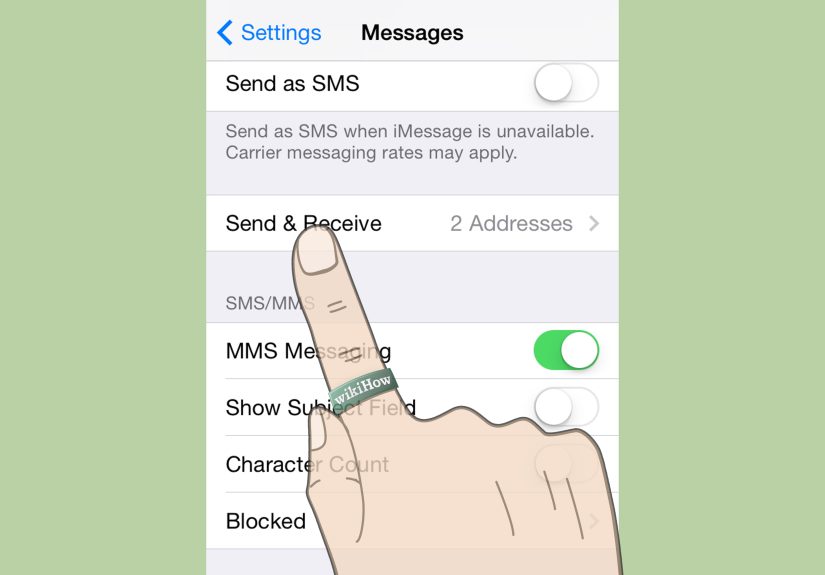
On iOS 7, go to Settings > Messages > Send & Receive. Make sure your phone number and Apple ID email address are selected correctly. If your iPhone is sending from your email when you want it to send from your phone number, change the “Start New Conversations From” option. If your phone number is missing or stuck waiting for activation, continue to Step 2.
Step 2: Turn iMessage Off, Reset Network Settings, Then Turn It Back On
This is the classic iOS 7 iMessage repair path. It clears the connection settings that may be confusing iMessage and gives the service a clean chance to activate again. Think of it as making your iPhone leave the room, take a breath, and reintroduce itself politely.
Turn off iMessage
First, go to Settings > Messages and switch iMessage off. Wait a few seconds. If FaceTime is also having activation trouble, go to Settings > FaceTime and turn it off too. iMessage and FaceTime often share activation behavior, so fixing one may help the other.
Reset network settings
Next, go to Settings > General > Reset > Reset Network Settings. Your iPhone will ask for confirmation and then restart. This does not erase your photos, apps, messages, or contacts. It does erase saved Wi-Fi passwords, VPN settings, and other network preferences. In other words, your selfies are safe, but you may need to re-enter your Wi-Fi password. If you do not know the Wi-Fi password, now is a great time to locate the tiny sticker on the router or ask the person in the house who claims to “know the internet.”
Resetting network settings can help because iMessage depends on clean communication between your iPhone, Apple’s activation servers, your internet connection, and sometimes your carrier. Old or corrupted network data can interfere with that handshake.
Turn iMessage back on
After the phone restarts, reconnect to Wi-Fi or make sure cellular data is active. Go back to Settings > Messages and turn iMessage on. Then go to Send & Receive and confirm your Apple ID, phone number, and preferred sending address.
Activation may not be instant. Sometimes iMessage shows “Waiting for Activation” for a while. Give it time, especially if you just reset network settings or changed SIM cards. If activation finishes and your phone number appears correctly, send a test message to someone who uses iMessage. A blue bubble means you are back in business. A green bubble may mean the recipient is not using iMessage, the internet connection is still failing, or iMessage is not fully activated yet.
Step 3: Update iOS 7 and Contact Apple or Your Carrier If Needed
If Step 1 and Step 2 do not fix the problem, check for an iOS update. This step matters because Apple specifically fixed iMessage issues in iOS 7.0.3. If your iPhone is still on an earlier iOS 7 version, the bug may not be something you can fully repair with settings alone.
Install the latest available iOS 7 update
Go to Settings > General > Software Update. If an update is available, back up your iPhone first, then install it. If you are using an older iPhone that cannot move beyond certain iOS versions, install the newest version available for that device. For iOS 7 users, iOS 7.0.3 was especially important because it included fixes for iMessage sending failures and activation problems.
Before updating, connect to Wi-Fi, charge your iPhone, and make sure you have enough storage. Nothing ruins a troubleshooting session quite like discovering your phone has 47 megabytes free because it is holding every blurry concert photo you have ever taken.
Check your carrier settings
If iMessage will not activate with your phone number, your carrier may be involved. iMessage activation can use your phone number, SMS routing, or carrier-side information. Make sure your SIM card is active, your phone line is working, and you can send a regular SMS text. If normal SMS does not work, iMessage activation may also fail.
To check for carrier updates, go to Settings > General > About. If a carrier settings update is available, your iPhone may prompt you to install it. These updates can improve cellular network compatibility and messaging behavior.
Sign out of Apple ID and sign back in
If iMessage works with your phone number but not your Apple ID, or the reverse, try refreshing your Apple ID connection. Go to Settings > Messages > Send & Receive, tap your Apple ID, and sign out. Restart the iPhone, then sign back in. This can help when the account token or activation session is stuck.
Contact Apple Support
If iMessage still refuses to cooperate after a network reset, software update, Apple ID refresh, and carrier check, it is time to contact Apple Support. Tell them exactly what you tried: restart, iMessage toggle, network reset, Send & Receive check, carrier check, and software update. That saves time and prevents the support conversation from becoming a dramatic reading of everything you already did.
Common iOS 7 iMessage Problems and What They Mean
“Waiting for Activation”
This means your iPhone is trying to register iMessage with Apple. Check Wi-Fi or cellular data, make sure the date and time are correct, confirm your phone number is active, and wait. If it stays stuck, toggle iMessage off, restart, and turn it on again. If needed, reset network settings.
“Not Delivered”
This usually points to a connection issue, a service issue, or the old iOS 7 sending bug. Try sending again after switching networks. If messages repeatedly fail, use the three-step fix above and install the latest iOS 7 update available.
Messages send as green bubbles
Green bubbles mean the message is going as SMS instead of iMessage. That can happen when iMessage is off, the recipient is not using iMessage, Apple’s service is unavailable, or your iPhone cannot connect to iMessage. Check Settings > Messages and make sure iMessage is enabled.
iMessage works on iPad but not iPhone
This usually means the Apple ID side of iMessage is working but the phone number side is not. Check Send & Receive, confirm your phone number is selected, and contact your carrier if SMS or phone activation seems broken.
Quick Checklist: The 3-Step Fix
- Check basics: internet connection, Apple system status, restart, date and time, and Send & Receive settings.
- Reset iMessage: turn iMessage off, reset network settings, restart, reconnect, and turn iMessage back on.
- Update and escalate: install the latest iOS 7 update, check carrier settings, refresh Apple ID, then contact Apple or your carrier if needed.
Real-World Experience: What Fixing iMessage in iOS 7 Often Felt Like
Fixing iMessage in iOS 7 was rarely a glamorous experience. It was more like detective work performed with one hand while holding coffee in the other. The typical story started innocently: someone updated their iPhone, admired the shiny new iOS 7 design, sent a message, and then watched it fail. At first, most people blamed the recipient. Maybe their friend had no signal. Maybe the Wi-Fi was bad. Maybe the universe simply did not want anyone to receive “running 10 minutes late.” Then the second message failed. Then the third. Suddenly, the iPhone was on trial.
The most frustrating part was inconsistency. Some users could send iMessages for a few hours after restarting, only for the problem to return later. Others could receive messages but not send them, which created a weird one-way conversation where everyone else could talk and the iPhone owner could only silently observe. In group chats, this was especially chaotic. A failed iMessage in a group thread can make you feel like you have been voted off an island you did not know you were visiting.
In practice, the network reset was often the turning point. It was not fun because it meant re-entering Wi-Fi passwords, but it frequently cleared whatever was stuck behind the scenes. The process felt a little dramatic: turn off iMessage, reset network settings, watch the phone reboot, reconnect to Wi-Fi, turn iMessage back on, then stare at “Waiting for Activation” like it was a suspense movie. When the checkmark finally appeared beside the phone number, the relief was real.
Another common lesson was that iMessage depends on more than the Messages app. People often assumed that if Safari worked, iMessage should work too. Usually, yesbut activation can also involve Apple ID authentication, device registration, phone number verification, and carrier behavior. That is why a normal reboot might not be enough. The phone needs to rebuild the network and activation relationship cleanly.
The iOS update step also mattered. Many users tried every trick online, but the real long-term fix came when Apple released an update addressing the iMessage failures. That is an important reminder: if a bug is built into the operating system, troubleshooting can reduce symptoms, but updating the software is often the actual cure. Settings fixes are bandages; bug-fix updates are stitches.
For anyone dealing with an old iPhone still running iOS 7, the best experience-based advice is simple: do not start by erasing the phone. Start with the low-risk fixes. Check the connection. Restart. Toggle iMessage. Confirm Send & Receive. Reset network settings. Update iOS. Only then consider heavier options like restoring the device. Most iMessage issues do not require a full wipe, and your camera roll deserves better than being threatened every time a blue bubble misbehaves.
Also, test carefully. Send a message to a known iPhone user. Then send a regular SMS to a non-iPhone user. Try Wi-Fi and cellular data separately. This helps you determine whether the problem is iMessage only, internet related, carrier related, or account related. Troubleshooting becomes much easier when you know which part is failing.
In short, iOS 7 iMessage problems were annoying, but not impossible. The fix was usually a combination of patience, clean network settings, correct Apple ID settings, and the right iOS update. And yes, after it works again, you may absolutely send a test message that says, “Finally.” You earned it.
Conclusion
If iMessage is not working in iOS 7, do not panic and do not immediately erase your iPhone. Start with the essentials: check your connection, restart the device, verify Send & Receive settings, and make sure Apple’s service is available. Then use the classic iOS 7 repair method: turn off iMessage, reset network settings, and turn iMessage back on. If the issue continues, update to the latest iOS 7 version available, especially because iOS 7.0.3 included important iMessage fixes.
Most iMessage problems come down to activation, network communication, Apple ID settings, or an iOS bug. Work through the steps in order, and you will avoid unnecessary stress, unnecessary resets, and unnecessary conversations with your phone that begin with, “Why are you like this?”
SEO Tags
Note: This article is written for historical iOS 7 troubleshooting. Menu names may differ on newer iOS versions, but the core troubleshooting logic remains useful: check the connection, refresh iMessage activation, reset network settings, and update the system when a known bug is involved.