Table of Contents >> Show >> Hide
- First: What “GPS Coordinates” Actually Look Like (So You Don’t Copy Weird Stuff)
- Method 1: Find Coordinates on a Computer (Fastest Copy/Paste)
- Method 2: Find Coordinates in the Google Maps App (Android)
- Method 3: Find Coordinates in the Google Maps App (iPhone & iPad)
- Method 4: Use Plus Codes When a Real Address Doesn’t Exist
- Method 5: Reverse ItFind a Place by Entering Coordinates
- Troubleshooting: When Google Maps Doesn’t Show Coordinates (Or Shows the “Wrong” Ones)
- Best Practices for Sharing Coordinates (So People Don’t End Up in the Wrong Parking Lot)
- FAQ
- Real-World Experiences: What People Actually Run Into (And How They Handle It)
- Conclusion
Ever needed the exact GPS coordinates for an addresslike, the actual “put-this-in-a-GPS-and-it-will-work”
latitude and longitudenot just “somewhere near that coffee shop with the good muffins”?
Google Maps can give you those coordinates in seconds, and once you know the clicks/taps, you’ll wonder why you ever
screenshot a map and drew an arrow like it’s 2007.
In this guide, you’ll learn multiple reliable ways to find GPS coordinates from an address using Google Maps
(desktop, Android, and iPhone), how to copy them cleanly, what coordinate formats mean, and how to troubleshoot the
classic “why is this number negative” moment.
First: What “GPS Coordinates” Actually Look Like (So You Don’t Copy Weird Stuff)
Most of the time, Google Maps shows coordinates in decimal degrees, which look like this:
38.897675, -77.036547. That pair is latitude first, then longitude.
Latitude vs. Longitude (The 5-Second Memory Trick)
- Latitude = up/down on the globe (north/south). Range: -90 to 90.
- Longitude = left/right on the globe (east/west). Range: -180 to 180.
-
Negative numbers are normal: in the U.S., longitude is usually negative because it’s west of the Prime Meridian.
(Congrats, you didn’t break the Earth.)
Other Formats You Might See (And Google Maps Usually Understands Them)
Besides decimal degrees (DD), you may run into:
- DMS (Degrees, Minutes, Seconds):
41°24'12.2"N 2°10'26.5"E - DMM (Degrees and Decimal Minutes):
41 24.2028, 2 10.4418
If you’re publishing, sharing, or pasting into a form, decimal degrees are usually the easiest because they’re compact and universally understood.
Method 1: Find Coordinates on a Computer (Fastest Copy/Paste)
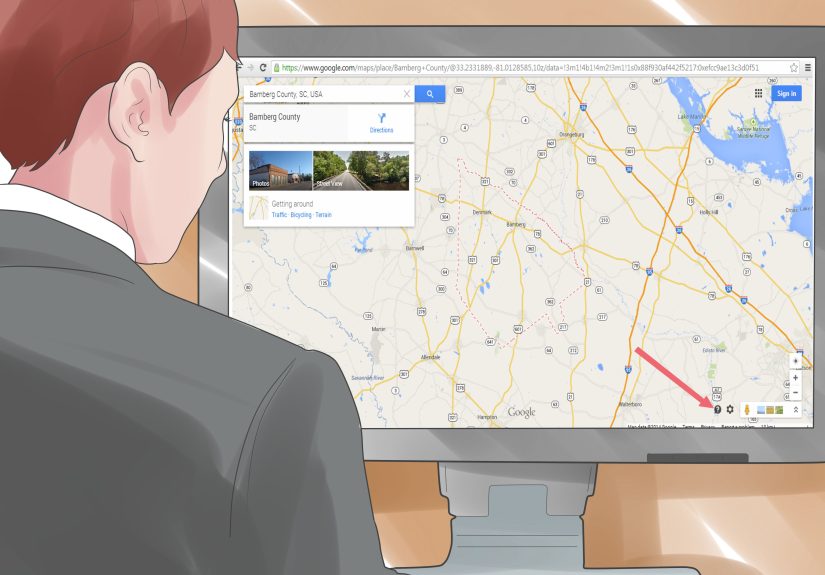
Desktop Google Maps is the quickest way to grab clean coordinatesespecially if you need to paste them into a spreadsheet, a report, or a “please tell us where the incident occurred” form.
Step-by-step (Desktop Web)
- Open Google Maps in a browser.
- Type the address into the search bar (example: 1600 Pennsylvania Ave NW, Washington, DC) and press Enter.
-
When the map centers on the location, right-click the pin (or the exact spot on the map).
A small pop-up/menu appears with location details. -
Look for the latitude and longitude (usually shown in decimal format).
Click the coordinate line to copy. - Paste wherever you need it (email, notes, GPS device, your group chat titled “Trip Chaos 2026”).
“What’s here?” vs. Right-Click Coordinates
Depending on your interface, you may see an option like “What’s here?” after right-clicking.
Either way, the goal is the same: trigger the info card/menu that reveals the coordinate pair so you can copy it.
Pro Tip: Pull Coordinates From the URL (Great for Double-Checking)
Many Google Maps links include coordinates in the address baroften after an @ symbol, like:
@40.7484405,-73.9856644,17z. If you’re sharing a map link anyway, this is a quick sanity check.
(Just don’t confuse the zoom level with a third coordinate. That “17z” is zoom, not secret latitude DLC.)
Method 2: Find Coordinates in the Google Maps App (Android)
On Android, Google Maps can display coordinates right in the search box after you drop a pin. This is handy when you’re standing somewhere that doesn’t have a neat addresslike a trailhead, a parking entrance, or “that exact gate where the taxi needs to wait.”
Step-by-step (Android)
- Open the Google Maps app.
- Search for the address (or navigate to it on the map).
- To get coordinates for an exact spot, touch and hold on the map in an area that isn’t already labeled to drop a red pin.
- Once the pin drops, look at the search box at the topthis is where the coordinates often appear on Android.
-
Tap the coordinate text (or the pin’s info panel) and copy it. If your version doesn’t show a “Copy” button,
you can usually select and copy from the visible coordinate line.
When the Address Pin Isn’t “Precise Enough”
Sometimes an address pin marks a general building footprint, but you need something more specificlike the back entrance, loading dock, or driveway.
In that case, zoom in and drop a pin exactly where you want the coordinate to represent. The coordinate pair updates based on the pin location, not just the mailing address.
Method 3: Find Coordinates in the Google Maps App (iPhone & iPad)
On iPhone and iPad, coordinates are typically shown in the placesheet (the info panel that slides up from the bottom).
The workflow is similar to Android, with a slightly different “where did Google hide the numbers this time?” layout.
Step-by-step (iOS)
- Open Google Maps.
- Search for the address (or manually browse the map).
-
Touch and hold on an unlabeled area to drop a red pin.
(If you’re trying to pin a specific spot near a labeled place, press-and-hold slightly beside the label.) - Tap the bottom info panel (placesheet) to expand it.
- Find the coordinates listed in the details, then copy them.
Method 4: Use Plus Codes When a Real Address Doesn’t Exist
Some places don’t have a clean street addressrural locations, large parks, new construction sites, or “somewhere in the middle of this beach, good luck.”
That’s where Plus Codes help. A Plus Code is a short alphanumeric code tied to a location and can be shared like an address.
How to get a Plus Code in Google Maps (Quick Steps)
- Drop a pin on the exact location.
- Open the location’s info panel.
- Look for the Plus Code section and tap to copy/share.
If your friend says “Just send me the coordinates,” you can send coordinates.
If your friend says “I can’t handle numbers,” you can send the Plus Code.
Both are valid friendship languages.
Method 5: Reverse ItFind a Place by Entering Coordinates
Once you have coordinates, you can paste them right into Google Maps to pull up the location.
This is great for verifying you copied the correct pair before you send it to someone who will absolutely drive to the wrong place and blame “the GPS.”
Example you can try
Paste a coordinate pair into the search bar like this:
40.7484405, -73.9856644
and Google Maps should zoom to that spot.
Formatting Rules That Save You From Chaos
- Use a period as the decimal separator (not a comma).
- Separate latitude and longitude with a comma.
- Put latitude first, then longitude.
- Make sure values fall in valid ranges: latitude -90..90, longitude -180..180.
Troubleshooting: When Google Maps Doesn’t Show Coordinates (Or Shows the “Wrong” Ones)
Problem: I don’t see “What’s here?”
Google Maps interfaces can vary by device, browser, and updates. If “What’s here?” isn’t visible, try these:
- Right-click directly on the map (not on a business label).
- Zoom in and click an unlabeled spot, then right-click again.
- Look for coordinates at the top of the pop-up menu; sometimes it shows the numbers without the “What’s here?” text.
Problem: I can’t copy the coordinates
- On desktop, click the coordinate line in the pop-up; it often copies automatically.
- On mobile, try tapping the coordinate area in the details panel, or press-and-hold to select text (varies by version).
- As a backup, use the Share feature to send a link to yourself, then extract the coordinate pair from the URL.
Problem: The coordinates aren’t “exact enough”
Coordinates can be extremely precise, but the pin location matters. If you searched an address and it snapped to a general building,
zoom in and drop a pin exactly where you want: a specific entrance, a parking lot corner, or the correct side of a large venue.
The coordinate you get is only as accurate as where you place that pin.
Problem: The numbers look too long (Do I need all those decimals?)
Those decimals represent precision. As a rough guide:
- 4 decimals: ~11 meters
- 5 decimals: ~1.1 meters
- 6 decimals: ~0.11 meters
For everyday navigation and sharing, 5 or 6 decimal places is usually plenty. If you’re doing survey work, engineering, or GIS,
you’ll want to keep more context (and possibly confirm coordinate systems and measurement methods).
Best Practices for Sharing Coordinates (So People Don’t End Up in the Wrong Parking Lot)
- Send coordinates plus a description. Example: “Use 34.011286, -116.166868 park at the west lot entrance.”
- Confirm the format (decimal degrees is the most common).
- Test the coordinates by pasting them into Google Maps before sending.
- Include a share link when possiblemany people prefer tapping over typing.
- Consider Plus Codes if the destination has no clear address or the area is rural.
FAQ
Can I get GPS coordinates from an address without dropping a pin?
Sometimes the address result itself will show coordinate-like details in the URL or in the location card,
but dropping a pin is the most consistent way to get an exact pair for a precise spot.
Are Google Maps coordinates “official” GPS coordinates?
They’re standard latitude/longitude values that work widely for navigation. However, the precision you get depends on map data,
your pin placement, and the underlying address/parcel mapping. For critical use cases, verify with additional tools or GIS sources.
Why do two apps give slightly different coordinates for the same address?
Address geocoding can place a point at a parcel centroid, building entrance, or roadway interpolationdifferent services may choose different points.
If you need a specific door/entrance, always drop the pin exactly where you need it.
Real-World Experiences: What People Actually Run Into (And How They Handle It)
In theory, getting coordinates is simple: search address, grab numbers, done. In real life, it’s more like:
“Why are there three entrances?” and “Why is this building the size of a small country?” Here are common, very human scenarios where Google Maps coordinates save the day.
1) The “Delivery Driver Needs the Exact Gate” Moment
Apartment complexes and gated communities love to have multiple entrancesand one of them is always the “wrong” one.
People often share an address and assume it’s enough, but the pin may land at the leasing office or the middle of the property.
A practical workaround is to zoom in and drop a pin at the exact gate or driveway entrance that visitors should use.
Then send the coordinates with a short note: “Use this entrance; the other one is resident-only.” That tiny detail can prevent a 20-minute loop and a very dramatic text message.
2) Meeting Friends at a Big Venue (Where “Front Entrance” Is a Lie)
Stadiums, convention centers, theme parks, and large campuses can have “front entrances” that are basically a myth.
Your friend says they’re at the front, you say you’re at the front, and somehow you’re both right and also 0.6 miles apart.
Many groups solve this by agreeing on a single pin locationlike a specific gate or a landmark statueand sharing coordinates in the group chat.
Bonus points if someone also shares a screenshot of the pin with the label “MEET HERE OR BE DOOMED” (completely optional but emotionally satisfying).
3) Outdoor Spots With No Address (Trailheads, Campsites, Boat Launches)
Outdoor locations are where coordinates shine. Trailheads can be unmarked, campsites can be spread out, and boat launches can have confusing access roads.
People frequently use Google Maps to drop a pin on the exact parking area or launch ramp and store the coordinates in their notes app.
Later, when cell service is spotty, having that coordinate pair (or a Plus Code) can be the difference between “Nice peaceful hike” and “Why are we on a road that turns into sand?”
4) The “New Construction” Problem
New buildings and developments aren’t always fully updated in maps, and sometimes the address exists on paper but not in navigation reality.
A common experience is that the address search lands nearbyclose, but not close enoughbecause roads or entrances are still being mapped.
In those cases, people will pin the visible driveway on satellite view (or pin the temporary access point), then share coordinates with contractors, movers, or guests.
It’s basically the digital version of “Ignore what the sign says; go here.”
5) The “I Copied the Numbers but It Still Didn’t Work” Panic
This usually happens because of formatting: commas used as decimals, latitude/longitude flipped, or missing the minus sign on U.S. longitude.
The real-world fix is simple: paste the coordinates back into Google Maps yourself. If the pin lands where you expect, you’re good.
If it lands in the ocean, congratulationsyou probably swapped something. (On the bright side, you’ve discovered a potential vacation spot.)
The big takeaway from these experiences: coordinates aren’t just “numbers for map nerds.”
They’re a practical tool for making sure people arrive at the right spot, not just the right ZIP code.
And once you’ve used them to save a meetup, a delivery, or a trip, you’ll start pinning everything like a cartographer with a mission.
Conclusion
If you can search an address in Google Maps, you can get its GPS coordinatesyou just need to know where Google hides the numbers on your device.
On desktop, right-click and copy the latitude/longitude. On mobile, drop a pin and pull the coordinates from the search box (Android) or placesheet (iOS).
And when addresses fail youbecause nature, construction, or confusing parking lotsPlus Codes and pinned coordinates keep everyone on the same page (and out of the wrong driveway).