Table of Contents >> Show >> Hide
- What “download all iCloud photos” really means
- Step 1: Choose where your full library will live
- Step 2: Make sure you are downloading originals, not optimized placeholders
- Step 3: Use the best download method for your device
- Step 4: Download in sensible batches if your library is huge
- Step 5: Export or copy your downloaded library to a second location
- Step 6: Verify everything before you delete anything
- Common mistakes people make when downloading all iCloud photos
- Frequently asked questions
- Real-world experiences: what this process is actually like
- Final thoughts
If your iCloud photo library has grown from “a few nice vacation shots” into “an accidental museum of your entire adult life,” you are not alone. Between screenshots, pet photos, blurry concert videos, and that one picture of a sandwich you swore you needed, iCloud fills up fast. The good news is that downloading all iCloud photos is absolutely doable. The less-good news is that the best method depends on whether you use a Mac, Windows PC, iPhone, iPad, or just a browser and a prayer.
This guide breaks the process into six practical steps, explains the fastest ways to pull down your full-resolution library, and helps you avoid the classic mistakes that make people think their photos vanished into the digital void. Spoiler: most of the time they did not vanish. They are just hiding behind sync settings, storage optimization, or a browser limit that loves drama.
What “download all iCloud photos” really means
Before you begin, it helps to understand one very important thing: iCloud Photos is a syncing service, not the same thing as a separate offline backup. That means your photos stay in sync across devices signed in to the same Apple Account. If you delete a photo on one synced device, it can disappear from the others too. So if your goal is to create a true backup, you want a local copy on a computer or external drive, not just “access” to the same library.
Also, “all photos” can mean different things depending on your method:
- Mac: Best for downloading the entire full-resolution library in one place.
- Windows PC: Good for keeping local copies, especially when paired with iCloud for Windows.
- iPhone or iPad: Fine for smaller batches, but not the most pleasant route for giant libraries.
- iCloud.com: Convenient, but usually better for chunks than for an enormous library.
Now let us do this the sane way.
Step 1: Choose where your full library will live
First, decide where you want your downloaded iCloud photos to end up. This sounds obvious, but skipping this step is how people wind up trying to download 300 GB of memories onto a laptop with 42 GB free. That is not a download strategy. That is a cry for help.
Best destination options
- Your Mac’s internal drive: Great if you have plenty of storage and want the easiest full-library sync.
- A Windows PC: Works well if you use iCloud for Windows and keep selected folders available offline.
- An external SSD or hard drive: Ideal for creating a backup copy you can store separately.
- Files app or external storage from iPhone/iPad: Best only for smaller or selective exports.
Check available space before you do anything else. If your iCloud Photos library is 500 GB, your target drive should have more than 500 GB free. More is better, because downloads and exports love a little breathing room.
While you are at it, ask yourself one question: Am I downloading for daily access, migration, or backup? If you want a backup, plan to store the final files on a second drive too. One copy is helpful. Two copies are relaxing.
Step 2: Make sure you are downloading originals, not optimized placeholders
This is the step people skip right before they say, “Why are my downloaded photos tiny?” Apple devices can optimize storage by keeping lightweight versions locally while full-resolution originals stay in iCloud. That is handy for saving space, but not great when your goal is a complete offline copy.
On a Mac
Open the Photos app, go to Photos > Settings > iCloud, and choose Download Originals to this Mac. This tells your Mac to pull in the full-size versions of your photos and videos instead of just showing optimized versions.
On iPhone or iPad
Go to Settings > your name > iCloud > Photos and choose Download and Keep Originals. Be warned: if your device is low on storage, this may not be practical for a huge library.
On Windows
If you use iCloud for Windows, make sure iCloud Photos is turned on. Then, once the files appear, mark the ones you want to keep locally as Always keep on this device. That forces Windows to store the real files offline instead of leaving them as cloud-dependent placeholders.
If your goal is truly “download all iCloud photos,” this step matters more than most people realize. Without it, you may think you backed up everything when you really saved a beautifully organized set of shortcuts.
Step 3: Use the best download method for your device
Now that you know where the photos are going and you have enabled originals where possible, pick the method that matches your setup.
Option A: Download all iCloud photos on a Mac
This is the cleanest route for many Apple users.
- Open Photos.
- Go to Photos > Settings > iCloud.
- Turn on iCloud Photos if it is not already on.
- Select Download Originals to this Mac.
- Leave the Mac connected to power and reliable internet.
- Wait for the full library to finish syncing.
For many people, this is the closest thing to a one-button answer. The catch is patience. A large photo library can take hours or days depending on its size and your connection. The Mac is doing real work here, not just putting on a convincing performance.
Option B: Download all iCloud photos on a Windows PC
If you live in Windows-land, you can still pull this off without dramatically switching ecosystems.
- Install and sign in to iCloud for Windows.
- Turn on iCloud Photos.
- Open File Explorer and go to iCloud Photos.
- Select the files or folders you want.
- Right-click and choose Always keep on this device.
- Once downloaded, copy them to another folder or external drive for backup.
This method works well, but there is an important detail: keeping a file “on this device” is not the same as creating a separate backup. If you want a true archive, copy the finished files into another folder outside the iCloud-managed location.
Option C: Download from iCloud.com
This is the universal method when you just need browser access. It is handy, but not always ideal for a giant library.
- Go to iCloud.com/photos.
- Sign in to your Apple Account.
- Select photos or videos.
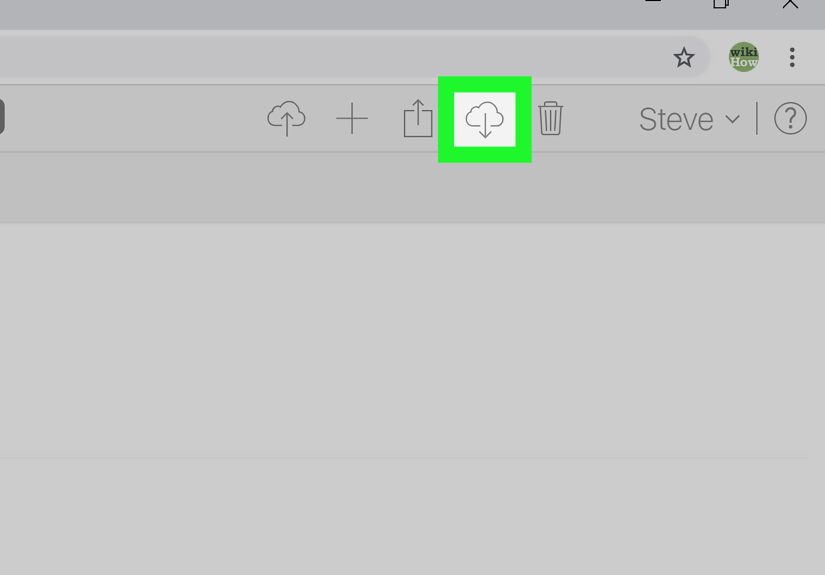
- Use the download button to save them.
- Choose the best format option if available, such as Unmodified Originals, Highest Resolution, or Most Compatible.
- Repeat in batches as needed.
The browser route is especially useful when you need cross-platform access, but it comes with a practical ceiling. If you are on iCloud.com, you can generally select up to 1,000 items at a time. That is fine for smaller jobs. It is less fun when your library contains enough photos to qualify as a documentary.
Option D: Download from iPhone or iPad
You can export originals from the Photos app, but for a huge library this is usually more tedious than elegant.
- Open Photos.
- Go to your library and tap Select.
- Choose the photos and videos you want.
- Tap the share button.
- Select Export Unmodified Originals.
- Save to the Files app or an attached external drive.
This works best for smaller groups or when you are traveling and only have an iPad or iPhone with you. For truly downloading everything, a Mac or Windows computer is usually easier.
Step 4: Download in sensible batches if your library is huge
If your library is massive, do not try to act like a superhero in one browser tab. Break the job into manageable chunks. This reduces the odds of failed downloads, corrupted ZIP files, or that special kind of sadness caused by realizing your browser gave up three hours ago.
Smart ways to batch your library
- By year or month
- By album
- By photo type, such as videos first, photos second
- By date range for easier verification later
If you are using iCloud.com, this step is almost mandatory for a large archive. If you are on Mac or Windows, the syncing process is more automatic, but you should still expect time delays for videos, large Live Photos, RAW files, and anything else that enjoys being extra.
One useful trick is to create a temporary folder structure like this on your destination drive:
- iCloud Photos Backup / 2022
- iCloud Photos Backup / 2023
- iCloud Photos Backup / 2024
- iCloud Photos Backup / Videos
Future you will be thrilled. Current you will feel organized. Everyone wins.
Step 5: Export or copy your downloaded library to a second location
Here is the crucial distinction: downloaded does not always mean safely backed up. If your Mac syncs the full-resolution library, that is great. But if the Mac dies tomorrow, you do not want your entire plan to be “Well, that seems bad.”
Once your full-resolution files are available locally, copy them to a second location.
Best backup targets
- An external SSD for speed
- An external hard drive for cheaper large-capacity storage
- A separate folder outside the iCloud-managed directory
- A second backup service, if you want the belt-and-suspenders version of safety
On a Mac, many people export or copy the Photos library after selecting Download Originals to this Mac. On Windows, many users copy their finished local files out of iCloud Photos and into a regular backup folder. That extra copy matters because synced folders can still reflect future changes.
If you are planning to downgrade your iCloud storage later, making that second copy is even more important. Think of it as the “do not panic later” step.
Step 6: Verify everything before you delete anything
This is the final step, and it deserves more respect than it usually gets. Before you delete photos from iCloud, before you turn off iCloud Photos, and before you downgrade iCloud+, confirm that your local copy is actually complete.
What to verify
- The file count looks reasonable
- Recent photos are included, not just old ones
- Videos open correctly
- Live Photos, RAW files, and edited versions behave the way you expect
- Your backup drive can be opened on another computer
Check several folders at random. Open files from different years. Test a few large videos. If something looks suspiciously small, incomplete, or oddly absent, pause before making any storage changes. The correct time to discover a missing folder is before you hit delete, not after.
If your real goal is not local backup but migration, Apple also offers a way to request a transfer copy of your iCloud Photos collection to Google Photos. That option is useful when you want to move libraries between services without manually downloading everything to a computer first.
Common mistakes people make when downloading all iCloud photos
- Confusing sync with backup: iCloud Photos keeps devices in sync; it is not the same as maintaining a separate offline archive.
- Forgetting storage limits: A full-resolution library needs real disk space.
- Using iCloud.com for a giant library without batching: Browsers are helpful, but they are not magical pack mules.
- Skipping the “Download Originals” setting: Optimized previews are not a proper archive.
- Deleting too early: Verify first, celebrate second.
- Ignoring videos: Videos are often the sneaky storage hogs in the room.
Frequently asked questions
Can I download all iCloud photos at once?
On a Mac, downloading originals to the Photos app is the closest thing to a full-library one-shot method. On Windows, iCloud for Windows can also keep items offline. In a browser, downloads are usually more practical in batches.
Is iCloud.com the best way to download everything?
Not always. It is convenient, but for huge libraries a Mac or Windows PC is often more reliable and less repetitive.
Will my edits transfer too?
Usually, yes, but the exact results can depend on format, export option, and whether you choose originals or more compatible versions. If edits matter, test a sample batch before doing the whole library.
What if I want to move from iCloud Photos to Google Photos?
Apple supports a direct transfer-copy option to Google Photos in many regions. That is different from downloading to a hard drive, but it can be a very useful shortcut for migration.
Real-world experiences: what this process is actually like
In real life, downloading all iCloud photos rarely feels like a dramatic hacker movie where green code rains down the screen and everything wraps up in eleven seconds. It feels more like cleaning out a packed attic. You start with confidence, find a system, then uncover a surprising number of things you forgot existed.
One of the first things people notice is just how large their library really is. A photo collection that seems harmless on an iPhone can turn out to be hundreds of gigabytes once full-resolution videos, bursts, Live Photos, screenshots, and edits are included. That is why storage planning matters so much. The download itself may be easy, but the destination can become the bottleneck. Plenty of people begin the process on a laptop, only to realize halfway through that their internal drive is waving a tiny white flag.
Another common experience is impatience. When a Mac is set to download originals, the Photos app does not always perform in a way that feels dramatic or obvious. Sometimes it looks calm, almost suspiciously calm, while it quietly chews through thousands of items in the background. Windows users often go through a similar phase where they see files appearing but still need to make sure those items are truly stored offline. That is the point where many people discover that “visible” and “backed up” are not the same thing.
Browser downloads tend to create a different kind of adventure. At first, iCloud.com feels simple: sign in, select photos, click download, and feel powerful. Then the library size sinks in. Suddenly you are organizing downloads by year, checking whether yesterday’s ZIP completed, and realizing that your photo history includes fourteen versions of the same sunset because apparently you were auditioning for a travel brochure.
There is also an emotional side to this process that people do not talk about enough. When you download an entire photo library, you are not just moving files. You are bumping into old trips, old phones, old pets, old apartments, old haircuts, and old versions of yourself. What begins as a storage task can turn into a time capsule. That is lovely, but it can also slow you down because “I am backing up my files” turns into “Why am I staring at photos from 2018 for forty minutes?”
The smartest people approach the task with low drama and good habits. They leave the computer plugged in, use a stable connection, create dated folders, and verify everything before changing any iCloud settings. They also make a second copy, because once you have gone through the trouble of downloading years of memories, you do not want them living on a single fragile device.
In short, the real experience of downloading all iCloud photos is part technical task, part organization project, and part unexpected nostalgia bomb. It is not hard, but it rewards patience. And once it is done, the feeling is excellent. Suddenly your library is not trapped in one cloud ecosystem. It is in your hands, on your drive, and under your control. That is a beautiful thing, even if you did have to sort through 9,000 screenshots to get there.
Final thoughts
If you want the simplest answer to how to download all iCloud photos, here it is: use a Mac with “Download Originals to this Mac” if you can, use Windows with “Always keep on this device” if you cannot, and use iCloud.com in batches when you need a browser-based method. Then make a second copy before you delete, downgrade, or rearrange anything. Easy in theory, slightly messier in practice, but completely manageable.
Your photos are too valuable to trust to guesswork. With the right method, enough storage, and a little patience, you can turn your iCloud photo library from a cloud-only dependency into a proper local archive. And then, finally, you can stop wondering whether that one irreplaceable family video is truly safe or just floating in the digital sky wearing a tiny Apple logo.