Table of Contents >> Show >> Hide
- Before You Start: Choose the Right Kind of “Cross-Out”
- How to Cross Out Words in Microsoft Word: 8 Steps
- Step 1: Open Your Document and Find the Text You Want to Cross Out
- Step 2: Select the Word or Phrase (Yes, Selection Matters)
- Step 3: Use the Strikethrough Button on the Ribbon (Fastest for Most People)
- Step 4: Use a Keyboard Shortcut (When You Want to Feel Like a Wizard)
- Step 5: Use the Font Dialog Box (The “Works Even When Everything Else Is Weird” Method)
- Step 6: Try Double Strikethrough (When One Line Isn’t Dramatic Enough)
- Step 7: Use Track Changes for Collaborative Editing (The “Everyone Sees What Happened” Option)
- Step 8: Remove Strikethrough (Or Accept Changes) So Your Final Draft Looks Final
- Troubleshooting: When Strikethrough Won’t Behave
- Quick Examples: When Crossing Out Words Is Actually Useful
- of Real-World Experiences Related to Strikethrough in Word
- Conclusion
You know that moment when you’re editing a sentence and your brain goes, “Delete this… but also, what if Future Me disagrees?”
That’s exactly why strikethrough exists in Microsoft Word. It lets you cross out text without actually deleting it,
so your document can show revisions, completed tasks, or “this idea seemed genius at 2 a.m.” decisions.
In this guide, you’ll learn the cleanest ways to put a line through words (and how to undo it), plus a few pro moves like
double strikethrough and Track Changesbecause sometimes you want to cross something out politely, and sometimes you want Word to
show your edits like a courtroom exhibit.
Before You Start: Choose the Right Kind of “Cross-Out”
Word gives you a couple of “cross-out” flavors. Picking the right one saves you from future confusion (and from coworkers asking,
“Is this crossed out because it’s wrong… or because it’s done?”).
- Strikethrough (formatting): Best for simple edits, brainstorming, checklists, and drafts you control.
- Double strikethrough: Useful in some legal/accounting contexts to mark text in a very “this is officially rejected” way.
- Track Changes deletions: Best when collaboratingWord marks deletions as strikethrough and keeps a revision history.
How to Cross Out Words in Microsoft Word: 8 Steps
Step 1: Open Your Document and Find the Text You Want to Cross Out
Open Microsoft Word and go to the sentence, list item, or paragraph you want to strike through. This works in Word for Microsoft 365
and most modern desktop versions of Word. If you’re in a shared document, take one second to check whether Track Changes is turned on
(more on that in Step 7).
Step 2: Select the Word or Phrase (Yes, Selection Matters)
Highlight the exact text you want to cross out. You can select:
- One word: Double-click the word.
- A phrase: Click and drag over it.
- A full sentence/paragraph: Triple-click inside it (or drag-select the paragraph).
Pro tip: If you accidentally apply strikethrough with no text selected, Word may “arm” the formattingso anything you type next will be crossed out.
If that happens, just toggle strikethrough off before you keep typing.
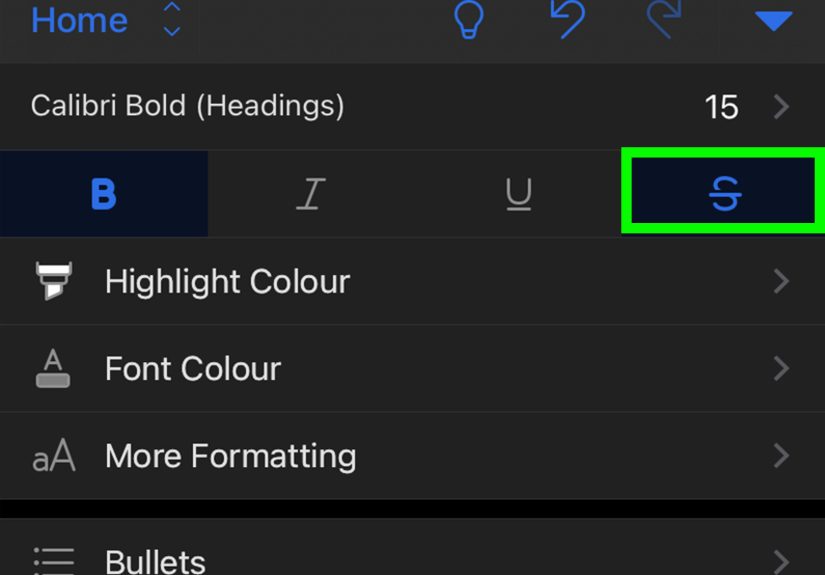
Step 3: Use the Strikethrough Button on the Ribbon (Fastest for Most People)
This is the simplest, most visual method:
- Go to the Home tab.
- In the Font group, click the Strikethrough button (it looks like letters with a line through them).
Your selected text now has a line through itcrossed out, but still readable. Perfect for edits like:
“The meeting is on Thursday Wednesday at 3 PM.”
Step 4: Use a Keyboard Shortcut (When You Want to Feel Like a Wizard)
If you’d rather keep your hands on the keyboard, you can apply strikethrough using Word’s ribbon access keys on Windows:
- Windows (common method): Press Alt, then H, then 4.
That sequence toggles strikethrough on or off for the selected text. (So pressing it again removes the linelike a light switch, but for regrets.)
Note: Keyboard shortcuts can vary by version, platform, and custom settings. If your shortcut doesn’t behave as expected, don’t panicStep 5 is the universal fallback.
Step 5: Use the Font Dialog Box (The “Works Even When Everything Else Is Weird” Method)
When buttons move, ribbons get customized, or you’re using a different Word layout, the Font dialog is your reliable friend:
- Select your text.
- Open the Font dialog:
- Windows: Press Ctrl + D.
- Mac (often): Press Command + D or use the Format/Font menu path in your version.
- In the Font dialog, look for Effects and check Strikethrough.
- Click OK.
This method is also great when you need more control, like combining strikethrough with italics, bold, or a specific font style.
Step 6: Try Double Strikethrough (When One Line Isn’t Dramatic Enough)
Double strikethrough is a special formatting option. It’s not used every day, but it’s helpful in certain workflows (audits, formal edits, some business markup).
- Select the text.
- Open the Font dialog (Ctrl + D on Windows).
- Check Double strikethrough (Word may label it exactly like that).
- Click OK.
If you only wanted one line and accidentally summoned two: go back into the Font dialog and uncheck double strikethrough.
Step 7: Use Track Changes for Collaborative Editing (The “Everyone Sees What Happened” Option)
If you’re editing a document with a team, a client, or a teacher, strikethrough formatting can look like you’re “crossing things out,”
but it won’t behave like a formal revision history. That’s where Track Changes shines.
- Go to the Review tab.
- Turn on Track Changes.
- Now when you delete text, Word marks it as a strikethrough deletion (instead of removing it completely).
This is the best method when someone needs to approve edits later. Bonus: it prevents the “Who deleted my paragraph?” mystery from turning into a documentary series.
Step 8: Remove Strikethrough (Or Accept Changes) So Your Final Draft Looks Final
At some point, your document needs to graduate from “working draft” to “final version that won’t embarrass me.”
- Remove strikethrough formatting: Select the crossed-out text and click the Strikethrough button again (or repeat the same shortcut you used).
- If you used Track Changes: Go to the Review tab and choose Accept or Reject changes.
Important: Using “Clear Formatting” can remove everything (bold, italics, color, etc.), not just strikethroughso use it only if you truly want a clean slate.
Troubleshooting: When Strikethrough Won’t Behave
“My new text keeps coming out crossed out!”
You probably toggled strikethrough with no text selected. Click anywhere, toggle strikethrough off, and continue typing.
“I deleted text, but it didn’t show up as strikethrough.”
That usually means Track Changes is offor the document is hiding markup. Turn on Track Changes and make sure deletions/markup are visible in the Review settings.
“I don’t see the strikethrough button.”
Use the Font dialog (Ctrl + D) and apply it from Effects. You can also add Strikethrough to the Quick Access Toolbar (QAT) so it’s always visible.
Quick Examples: When Crossing Out Words Is Actually Useful
- Editing a resume: Cross out weak verbs while you brainstorm stronger ones (“helped” helped → “coordinated,” “led,” “improved”).
- Meeting notes: Mark decisions that were revised without deleting the original context.
- To-do lists: The classic “I did the thing” satisfaction line-throughcheaper than therapy and faster than a victory speech.
- Collaborative drafts: Use Track Changes so everyone sees what changed and why.
of Real-World Experiences Related to Strikethrough in Word
If you ask a group of Word users how they “discovered” strikethrough, you’ll usually hear one of two origin stories: the checklist victory
or the editing rescue mission. The checklist victory is simplesomeone makes a list of tasks, finishes one, and wants that sweet, visual confirmation
that the thing is done. The first time you cross out “Call dentist” or “Finish lab report,” it’s oddly satisfying. It’s like giving your future self
a tiny high-five right inside the document. And then it escalates. Suddenly you’re striking through everything: errands, grocery items, plot points in your novel.
Word becomes less of a word processor and more of a very polite scoreboard.
The editing rescue mission is where strikethrough becomes a serious productivity tool. Picture a student revising an essay. They don’t want to delete a sentence
outright because they’re not 100% sure it’s wrongthey’re just not sure it’s right. Strikethrough is the perfect middle ground: it removes the sentence from the
“final” flow while keeping it available for later comparison. That’s a powerful editing habit because it encourages experimentation. You can try a tighter thesis statement,
cross out a clunky paragraph, and rewrite it without losing the original. Later, you can compare versions and decide which one is clearer. It’s editing without fear.
In workplaces, people often use strikethrough during fast-moving collaborationespecially when a document is evolving quickly. A manager reviewing a proposal might strike through
“launch in Q2” and replace it with “launch in Q3,” but keep the old timing visible for context. Meanwhile, someone else adds comments explaining why the timeline changed.
In these situations, Track Changes becomes the next step: strikethrough formatting is great for informal drafts, but Track Changes is what you use when the document needs a formal,
reviewable history. Many teams learn this the hard way after someone asks, “Wait… who crossed that out?” and nobody can confidently answer.
Another common experience: people assume there’s one universal keyboard shortcut, then discover shortcuts can vary by device, Word version, and customization. That’s when users become
accidental “Word mechanics”they open the Font dialog, hunt for Effects, and realize Word has multiple ways to do the same thing. It’s a small lesson with a big payoff: once you know
the ribbon method, the shortcut method, and the Font dialog fallback, you’re basically strikethrough-proof. Buttons can move. Toolbars can disappear. But you’ll still be able to cross
out text like you’re calmly defusing a formatting bomb.
And finally, there’s the “final draft cleanup” experience: the moment you realize your document is full of crossed-out text and now looks like it survived a negotiation. That’s when you
remove strikethrough formatting or accept/reject tracked changes so the final version reads cleanly. Strikethrough is fantastic during the messy middle of writingbut the best use of it
is knowing when to let it go. Think of it as the scaffolding: essential while you build, removed when you’re ready to show the finished work.
Conclusion
Strikethrough in Microsoft Word is one of those small features that quietly does a lot of heavy lifting: it supports better editing, clearer revisions, and more readable collaboration.
Use the Home tab button when you want speed, the Font dialog when you want control, and Track Changes when you want accountability. Your words can stay visible, your edits can stay honest,
and your document can stay readableno dramatic deletions required.