Table of Contents >> Show >> Hide
- Why Learning to Draw a Circle in Illustrator Matters
- How to Create a Circle in Adobe Illustrator: 8 Steps
- Step 1: Open Adobe Illustrator and Create a New Document
- Step 2: Select the Ellipse Tool
- Step 3: Click and Drag on the Artboard
- Step 4: Hold the Shift Key to Make a Perfect Circle
- Step 5: Use the Selection Tool to Check and Adjust the Shape
- Step 6: Enter Exact Width and Height for Precision
- Step 7: Style the Circle with Fill and Stroke
- Step 8: Align, Duplicate, and Edit the Circle for Real Projects
- Helpful Tips for Better Circles in Illustrator
- Common Mistakes to Avoid
- Final Thoughts
- Real-World Experience: What Happens After You Draw Your First Hundred Circles
Creating a circle in Adobe Illustrator sounds almost too easy, like a tutorial called “How to Pour Water Into a Glass.” But here is the twist: a surprising number of beginners end up with an oval, a stretched blob, or a mysterious shape that looks like it lost a fight with the mouse. The good news is that making a clean, perfect circle in Illustrator is simple once you know the right tool, the right shortcut, and a couple of smart habits.
Whether you are designing a logo, building icons, drawing buttons for a website mockup, creating badges, or laying out a polished infographic, the circle is one of the most useful vector shapes in your toolbox. In Adobe Illustrator, circles are not just decoration. They are the building blocks for patterns, charts, masks, symbols, and geometric illustrations. Learn this one skill well, and suddenly half your design ideas stop feeling annoying and start feeling possible.
This guide walks you through how to create a circle in Adobe Illustrator in 8 steps, plus a few practical tricks for sizing, aligning, styling, and editing your shape like someone who did not just meet the software five minutes ago.
Why Learning to Draw a Circle in Illustrator Matters
Illustrator is a vector design program, which means every shape you make can scale up or down without turning into a pixelated mess. That makes a circle especially powerful. A perfect vector circle can become a logo mark, an icon background, a pattern element, a button, a chart component, or the base shape for more complex illustrations.
In other words, this is not just about drawing one round object. It is about learning a repeatable Illustrator skill you will use again and again. Once you understand the Ellipse Tool, equal dimensions, fill and stroke controls, and alignment features, you can create cleaner artwork much faster.
How to Create a Circle in Adobe Illustrator: 8 Steps
Step 1: Open Adobe Illustrator and Create a New Document
Start by launching Adobe Illustrator and opening a new file. You can choose any preset you like, such as web, print, or social media, because the process for drawing a circle is the same across document types. Pick an artboard size that gives you enough room to see what you are doing comfortably.
If you are practicing, a simple square artboard works nicely because it makes spacing and alignment easier to judge. A cluttered canvas is not a crime, but it is not exactly a confidence booster either.
Before you draw, take a quick look at the workspace. Make sure your toolbar is visible and your Properties panel is open. Those two areas will do most of the heavy lifting in this tutorial.
Step 2: Select the Ellipse Tool
To create a circle in Illustrator, you need the Ellipse Tool. In many workspaces, it is grouped under the Rectangle Tool in the toolbar. Click and hold the shape tool icon to reveal the hidden shape options, then choose Ellipse Tool.
You can also save yourself a click and press L on your keyboard. That shortcut switches directly to the Ellipse Tool, and once you start using Illustrator regularly, keyboard shortcuts become less “nice bonus” and more “how am I supposed to live without this?”
At this point, you are ready to draw an ellipse. To turn that ellipse into a true circle, the next step is where the magic happens.
Step 3: Click and Drag on the Artboard
With the Ellipse Tool active, click and drag anywhere on the artboard. As you drag, Illustrator creates an ellipse shape. If you release the mouse right away without using any modifier keys, you will probably end up with an oval instead of a perfect circle.
This part is useful because it helps you understand the basic behavior of the tool. Illustrator treats circles as a constrained version of ellipses. So yes, every circle is an ellipse, but not every ellipse deserves to call itself a circle.
Do not worry about making it perfect on the first try. At this stage, just get comfortable with how the tool responds as you drag.
Step 4: Hold the Shift Key to Make a Perfect Circle
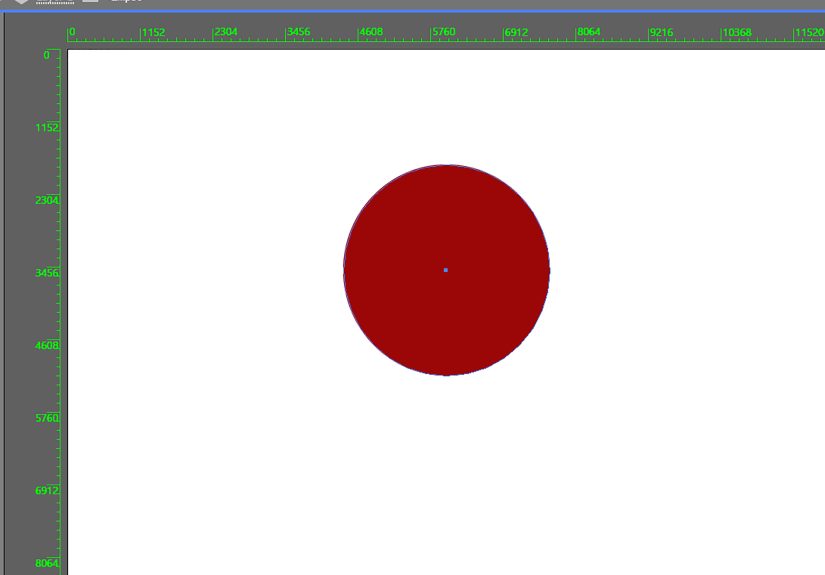
Here is the key move: while dragging with the Ellipse Tool, hold down the Shift key. This constrains the proportions of the shape so the width and height stay equal. Equal width plus equal height equals a perfect circle. Math finally showed up to be helpful.
Keep holding Shift until you release the mouse. That detail matters. If you let go of Shift too early, Illustrator may revert to an ellipse at the last second. It is a tiny mistake, but it is one that happens all the time when you are moving too fast.
This is the fastest method for making a circle in Adobe Illustrator and the one most designers use when they are sketching layouts, icons, or decorative shapes.
Step 5: Use the Selection Tool to Check and Adjust the Shape
Once you have drawn your circle, switch to the Selection Tool by pressing V. Click the circle to select it and inspect the bounding box around the shape. If it looks even and round, great. If it looks slightly stretched, it probably became an ellipse somewhere during the drag.
This is also a good moment to move the circle into place. Just click and drag it to a new location on the artboard. If Smart Guides are enabled, Illustrator can help you snap the shape more precisely as you move it. That is especially useful when you are trying to center a circle or line it up with other artwork.
Designers often skip this pause and jump straight into styling. Resist the urge. A circle in the wrong place is still wrong, even when it is wearing a very fancy gradient.
Step 6: Enter Exact Width and Height for Precision
Freehand drawing is great for speed, but exact dimensions matter in professional design work. Maybe your badge needs to be exactly 200 pixels wide. Maybe your icon background has to be 1 inch. Maybe your client has an oddly specific relationship with symmetry. This is where precision comes in.
Select the circle and go to the Properties or Transform panel. Look for the W and H fields, which stand for width and height. To keep the shape as a true circle, enter the same value in both fields. For example:
W: 300 px
H: 300 px
You can also create a perfectly sized circle by selecting the Ellipse Tool and clicking once on the artboard instead of dragging. Illustrator opens a dialog box where you can type the width and height manually. Enter the same number for both fields, click OK, and Illustrator creates a mathematically tidy circle without any guesswork.
This method is excellent for logos, UI elements, charts, and any design where consistency matters.
Step 7: Style the Circle with Fill and Stroke
Now that you have the shape itself under control, give it some visual personality. With the circle selected, go to the Fill and Stroke controls in the Properties panel or toolbar. The fill is the inside color of the shape. The stroke is the outline.
For example, you could make a simple icon background by applying a solid blue fill and removing the stroke. Or you could create a ring shape by setting the fill to none and increasing the stroke weight. Both begin with the same basic circle, but they produce very different visual effects.
This is one reason circles are so versatile in Illustrator. A plain shape can become a button, target, label, badge, dot pattern, or decorative frame in seconds just by changing fill, stroke, and size.
Step 8: Align, Duplicate, and Edit the Circle for Real Projects
The last step is turning one circle into something useful. Use the Align panel to center the circle on the artboard or line it up with other shapes. When working on clean layouts, proper alignment makes a design feel intentional instead of accidentally assembled at 2:13 a.m.
You can also duplicate the circle to build more complex artwork. For instance, a logo concept might use three overlapping circles. A loading icon might use a ring of repeated circles. A badge may use one large outer circle and one smaller inner circle. Illustrator makes this kind of geometric construction easy because you can duplicate, resize, recolor, and align shapes quickly.
If you need to edit the circle later, simply select it again and change its width, height, stroke, fill, or position. Because Illustrator uses vector paths, your circle stays crisp and editable throughout the design process.
Helpful Tips for Better Circles in Illustrator
Once you know the basic 8 steps, a few extra habits will make your workflow much smoother.
Use Smart Guides for Cleaner Placement
Smart Guides help you position your circle more accurately by showing alignment cues as you move objects. They are especially useful when centering shapes, aligning circles with text, or creating evenly spaced icon sets.
Work with Exact Measurements When Consistency Matters
If you are designing for branding, interface design, or print, do not rely only on dragging by eye. Use exact width and height values so every circle matches the system you are building.
Think of Circles as Building Blocks
A circle rarely stays “just a circle” in real design work. It becomes an eye, a button, a planet, a sticker, a chart segment, a bubble, a badge border, or the base for shape-building. When you start seeing circles as construction pieces rather than final objects, Illustrator gets much more fun.
Common Mistakes to Avoid
Forgetting the Shift key: This is the most common reason people end up with an oval instead of a circle.
Typing different width and height values: The shape will no longer be a true circle if the dimensions do not match.
Skipping alignment: A perfect circle can still look off if it is not centered or spaced properly in the design.
Overcomplicating the process: Beginners sometimes reach for the Pen Tool too early. Relax. This job belongs to the Ellipse Tool.
Final Thoughts
Learning how to create a circle in Adobe Illustrator is one of those beginner skills that pays off forever. The process is simple: choose the Ellipse Tool, drag on the artboard, hold Shift for a perfect circle, then refine the size, color, and placement using Illustrator’s panels. That is the core workflow.
But the bigger lesson is this: small technical habits create better design results. Knowing which tool to use, when to constrain proportions, and how to enter exact dimensions saves time and keeps your artwork clean. One neat little circle may not feel heroic, but in Illustrator, it is often the first step toward building something much more impressive.
So go ahead and draw one. Then draw ten. Then duplicate them, align them, style them, stack them, and turn them into something cool. Congratulations, you are officially going in circles for a good reason.
Real-World Experience: What Happens After You Draw Your First Hundred Circles
The funny thing about learning circles in Illustrator is that the first one feels tiny, almost silly. You think, “Great, I made a round shape. Please alert the design community.” But after working on real projects, you realize circles show up everywhere. They are the friendly overachievers of graphic design.
In logo drafts, circles help create balance fast. They make compositions feel stable and intentional, especially when a brand needs a modern or approachable look. In icon design, circles are often used as containers, notification badges, toggles, profile placeholders, and decorative dots. In infographics, they become chart elements, markers, legend symbols, and emphasis points. In social graphics, they turn into stickers, seals, callouts, and backgrounds for headlines. One simple shape starts doing the work of ten.
A lot of beginners also discover an important truth after a few projects: the challenge is usually not drawing the circle. The challenge is drawing the right circle at the right size in the right place. That is why exact dimensions and alignment matter so much. The first few times you eyeball it, things look “close enough.” Then you zoom in and suddenly your badge is off-center, your icon set feels uneven, and your beautifully symmetrical design has the visual confidence of a folding chair.
Another practical lesson comes from repetition. Once you duplicate circles and build with them, you start understanding Illustrator more deeply. You notice how quickly geometric artwork comes together when the base shapes are clean. You rely less on messy manual drawing and more on a system. That change feels small, but it is huge for speed and quality.
There is also a confidence boost that comes from mastering basic shapes. Illustrator can feel intimidating at first because the interface looks like it was designed by a committee of very organized robots. But when you understand one dependable workflow, such as creating circles accurately, the software starts to feel less mysterious. You stop poking around hopefully and start making decisions on purpose.
Over time, circles become less of a beginner exercise and more of a design shortcut. Need a quick mascot eye, app icon background, price tag badge, or decorative pattern? Start with a circle. Need a polished composition with balance and repetition? Start with a circle. Need to fake confidence while a client watches over your shoulder? Definitely start with a circle. It looks deliberate, even when you are still figuring out the rest.
That is the real experience behind this skill. Learning to make a circle in Adobe Illustrator is not just about one shape. It is about learning control, precision, and rhythm in your design process. And once that clicks, even a very basic circle starts feeling like a smart design move instead of a beginner milestone.