Table of Contents >> Show >> Hide
- Why Birthdays on iPhone Can Feel a Little Confusing
- Method 1: Add a Birthday to a Contact and Let the iPhone Do the Work
- Method 2: Create a Recurring Yearly Event in the Calendar App
- Method 3: Sync Birthdays from Google or Outlook to Your iPhone Calendar
- Which Birthday Method Should You Use?
- Troubleshooting: Why Birthdays Are Not Showing on Your iPhone Calendar
- Small Habits That Make Birthday Reminders Actually Useful
- Conclusion
- Real-World Experiences: What It Is Actually Like to Use Birthday Tracking on iPhone
Remembering birthdays sounds easy until life gets loud, your inbox gets weird, and suddenly you are buying a last-minute gift card at 11:47 p.m. like a person starring in a cautionary tale. The good news is that your iPhone can do a lot of the remembering for you. The even better news is that you have more than one way to add birthdays to an iPhone calendar, depending on how organized you are, how many people you track, and whether your digital life lives in Apple, Google, Outlook, or all three at once.
If you have ever opened the Calendar app and thought, “Why can’t I just type a birthday into the Birthdays calendar like a normal event?” you are not alone. Apple’s setup is helpful, but it is not always obvious. The built-in Birthdays calendar is designed to pull birthday data from your contacts, which means the smoothest path is often through the Contacts app, not the Calendar app itself. Still, that is only one of the practical options.
In this guide, you will learn three easy methods to add birthdays to an iPhone calendar: adding birthdays through Contacts, creating a recurring yearly event manually, and syncing birthdays from Google or Outlook. Along the way, we will cover alerts, common problems, and a few real-world tricks that make your iPhone feel less like a glass rectangle and more like your reliable personal assistant.
Why Birthdays on iPhone Can Feel a Little Confusing
Here is the short version: the iPhone birthday calendar and a normal calendar event are not exactly the same thing.
When you add a birthday to a person’s contact card, Apple can show that date inside a special Birthdays calendar. That calendar is convenient because it keeps birthdays grouped neatly and automatically. But it can also be confusing because you do not really “type into” it the same way you create a dentist appointment or lunch meeting. It is more like a smart view that reads the birthday field from your contacts.
That means one method is perfect for people already saved in your phone. Another is better for dates you want full control over. And a third works well if your birthdays already live in another calendar ecosystem, such as Google Calendar or Outlook. Once you know the difference, the whole thing becomes much less mysterious and much more useful.
Method 1: Add a Birthday to a Contact and Let the iPhone Do the Work
Why this is the best method for most people
If the birthday belongs to a real person you already text, call, email, or occasionally forget to call back, this is usually the best option. Adding a birthday to a contact keeps the information connected to the person, not just the date. It is clean, automatic, and easy to maintain over time.
This is also the most “Apple” way to do it. Once the birthday is inside the contact, your iPhone can display it in the Birthdays calendar, and you do not have to build a separate yearly event from scratch for every friend, cousin, teacher, coworker, or suspiciously young-looking uncle.
How to add a birthday through Contacts
- Open the Contacts app on your iPhone.
- Select the contact you want to update.
- Tap Edit.
- Scroll until you see the birthday field, or add it if needed.
- Enter the person’s birth date.
- Tap Done.
Now open the Calendar app, tap Calendars at the bottom, and make sure Birthdays is enabled. Once that switch is on, birthdays saved in Contacts can appear alongside your other events.
Why people like this method
This method is simple because it is automatic after setup. You update the person once, and the date can keep showing year after year. It is especially handy for family members, close friends, classmates, and coworkers whose contact cards you actually use.
It also helps reduce clutter. Instead of having a separate event called “Sarah Birthday,” another called “Mom Birthday,” and another called “Uncle Joe Birthday maybe don’t forget this time,” your iPhone handles them in one organized birthday view.
When this method is perfect
Use this approach when the person is already in your address book, when you want birthdays to stay tied to contact information, or when you like the clean look of Apple’s special Birthdays calendar. It is also the easiest method for people who want birthday reminders on iPhone without a lot of manual calendar management.
One important limitation
You cannot treat the Birthdays calendar exactly like a normal editable calendar. If you want to change a birthday, you usually change it in the contact card. So if a date is wrong, do not keep poking the Calendar app like it personally offended you. Go back to Contacts and edit the birthday there.
Method 2: Create a Recurring Yearly Event in the Calendar App
Why this method still matters
Sometimes you do not want a birthday tied to a contact. Maybe it is your boss’s birthday, your favorite bakery’s anniversary sale, your dog’s “gotcha day,” or a reminder for a child’s classmate you do not need saved as a full contact. In that case, creating a recurring birthday event on iPhone is the easiest move.
This method gives you more control over the title, alerts, calendar color, and extra notes. It is not as automatic as the Contacts-based method, but it is flexible and very reliable.
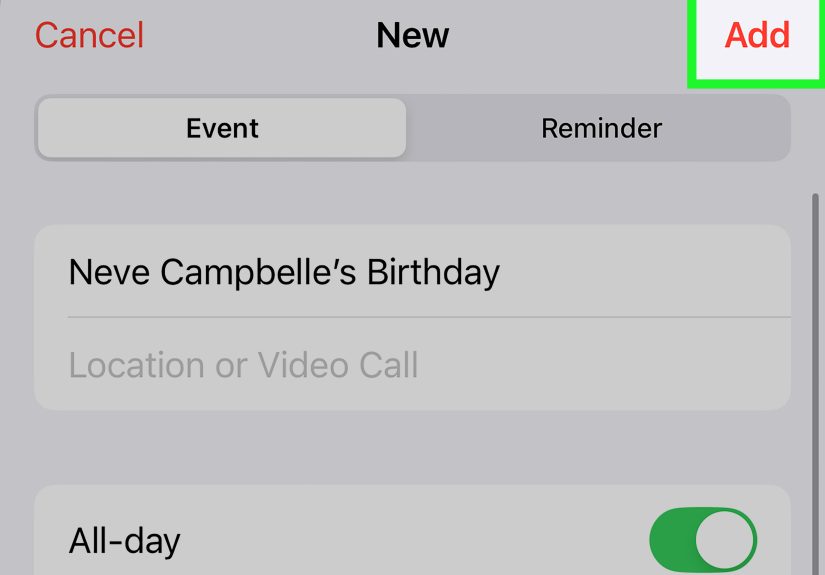
How to create a yearly birthday event
- Open the Calendar app.
- Tap the plus sign to create a new event.
- Enter a title, such as Emma’s Birthday.
- Turn on All-Day.
- Select the correct date.
- Tap Repeat and choose Every Year.
- Add an alert if you want a reminder one day before, one week before, or at another useful time.
- Choose the calendar where you want the event saved.
- Tap Done.
That is it. Your iPhone will now show that birthday every year without any extra work from future-you, who will be grateful and possibly less chaotic.
Why this method is underrated
Manual yearly events are great when you want custom wording or extra planning notes. For example, instead of just adding “Dad’s Birthday,” you can create an event titled Dad’s Birthday – call before dinner or Buy gift for Ava by Friday. That kind of detail can turn a reminder into an actual plan.
It is also useful for milestone reminders. You may want a separate event for a 16th birthday party, a 21st birthday dinner, or a 50th surprise celebration. The contact method is excellent for remembering the date. The manual event method is better when the date needs context.
Best use cases for recurring events
This method works well for acquaintances, clients, teammates, children’s friends, recurring celebrations, and any birthday-like event that is more about planning than contact management. It is also the easiest method when you want to keep birthdays inside a specific calendar, such as a Family calendar or a Work reminders calendar.
Method 3: Sync Birthdays from Google or Outlook to Your iPhone Calendar
Who should use this method
If your life already runs through Google or Outlook, there is no reason to pretend your iPhone exists in a vacuum. Plenty of people keep birthdays in Google Contacts, Google Calendar, or Outlook contacts. If that is you, syncing those accounts to your iPhone is often the smartest option.
This method is especially useful for people who switch between devices, share information across work and personal accounts, or already have birthday data stored somewhere other than Apple Contacts.
How to sync a Google or Outlook account to iPhone Calendar
- Open Settings on your iPhone.
- Tap Apps, then Calendar.
- Tap Calendar Accounts.
- Choose Add Account.
- Select Google or Outlook.com.
- Sign in and allow calendar access.
- Open the Calendar app.
- Tap Calendars and make sure the synced calendar is visible.
Once the account is connected, your iPhone can display the calendars from that service. If birthdays are already being managed there, they may show up alongside your Apple calendar view, depending on how the account is set up.
A useful Google-specific option
If you use the Google Calendar app on your iPhone, Google also supports birthday entries there. That can be helpful if your contacts and reminders already revolve around Google rather than Apple. In that setup, your iPhone is still the device you use every day, but the birthday data is managed through your Google tools.
Why this method is practical
This is the best choice when you already have years of birthdays stored in another system and do not want to re-enter everything by hand. It is also ideal for work environments where Outlook is the standard and for households that share calendars across multiple platforms.
Think of it as the “work smarter, not harder” option. Your iPhone does not need to be the place where every birthday is born. It can simply be the place where birthdays show up reliably.
Which Birthday Method Should You Use?
- Use Contacts if the person is already saved in your phone and you want the cleanest Apple-native setup.
- Use a yearly event if you want custom notes, custom alerts, or the date is not tied to a full contact.
- Use Google or Outlook sync if your birthday data already lives in another account and you want it visible on your iPhone.
For most people, the smartest strategy is actually a mix. Use Contacts for family and close friends, manual recurring events for special planning dates, and synced accounts for work or shared calendars. Your iPhone does not mind teamwork.
Troubleshooting: Why Birthdays Are Not Showing on Your iPhone Calendar
1. The Birthdays calendar is hidden
This is the most common issue. Open the Calendar app, tap Calendars, and make sure Birthdays is selected. If it is unchecked, your iPhone may have the information but simply is not showing it.
2. The birthday was not saved in the right place
If you added a date in Notes or somewhere random inside the contact card, that may not behave the same way as the actual birthday field. Make sure the date is in the correct birthday field for the contact.
3. Sync needs time
Sometimes the birthday is correct, the settings are correct, and the phone is still acting like it needs coffee. Sync delays happen. If you use iCloud, changes may not always appear instantly. Give it some time, then reopen Calendar and check again.
4. You have duplicate contacts
If birthdays appear twice, duplicate contacts may be the culprit. Search for the person in Contacts and see whether multiple cards exist. Duplicate entries can create duplicate birthday events, which is a fast way to make one person seem dramatically more important than everyone else.
5. Alerts are not configured
If the birthday is showing but you are not getting reminded, check your settings. Go to Settings > Apps > Calendar > Default Alert Times and review the birthday alert timing. For manually created events, you can also set the alert inside the event itself.
Small Habits That Make Birthday Reminders Actually Useful
Adding birthdays is great. Adding birthdays in a way that helps you do something with them is even better.
First, set alerts early enough to act. A reminder the morning of someone’s birthday is nice, but a reminder one week ahead is better if you plan to mail a card, order flowers, or pretend you are naturally this thoughtful.
Second, name manual events clearly. “Birthday” is not helpful if you know twelve people with birthdays in the same month. “Nina Birthday – text in the morning” is much more useful than mysterious calendar archaeology later.
Third, use separate calendars if your life is busy. A Family calendar, Personal calendar, and Work calendar can make it easier to keep celebratory events from getting buried under meetings and appointments.
Finally, review birthdays once or twice a year. Contacts change, people switch names, and some entries become outdated. A quick cleanup keeps your iPhone calendar useful instead of weirdly haunted.
Conclusion
Learning how to add birthdays to an iPhone calendar is one of those tiny tech skills that quietly makes life easier. Apple gives you a built-in Contact-based method, the Calendar app gives you a flexible recurring-event method, and synced accounts from Google or Outlook give you a cross-platform method. Together, those three options cover almost every situation.
If you want the cleanest setup, start with Contacts. If you want full control, use a recurring yearly event. If you already manage birthdays somewhere else, sync that account and let your iPhone display the results. Do it once, set smart alerts, and your future self will stop panic-searching dates like a contestant on a game show called Whose Birthday Is It Anyway?
Real-World Experiences: What It Is Actually Like to Use Birthday Tracking on iPhone
At first, adding birthdays to an iPhone calendar feels like one of those chores you keep postponing because it sounds small and annoyingly fiddly. Then you do it, and suddenly life gets easier in a very specific, very satisfying way. It is not dramatic like buying a new phone or changing jobs. It is more like finally labeling all the kitchen containers and realizing, wow, this is weirdly calming.
For a lot of people, the first big win comes with family. Once parents, siblings, grandparents, and close friends are added correctly, the iPhone stops being just a schedule tool and starts acting like a memory backup system. You wake up, glance at your calendar, and there it is: a birthday you absolutely would have forgotten without help. Instead of sending a text at 10 p.m. that says, “Hope you had a great day,” you are actually early enough to call, send flowers, or at least act like a polished adult who plans ahead.
The second common experience is realizing that not every birthday belongs in Contacts. This is where manual yearly events shine. People often discover they want reminders for a child’s classmate, a favorite client, a mentor, or even a pet adoption date. Those are the kinds of dates that matter emotionally or practically, even if you do not need a full contact card with three email addresses and an old office number from 2019. A recurring event gives you just enough structure without turning your Contacts app into a cluttered attic.
Then there is the cross-platform crowd, and honestly, they deserve a medal. These are the people juggling an iPhone, a Windows laptop, a Google account, an Outlook calendar, and maybe one extremely opinionated workplace IT department. For them, syncing birthdays into the iPhone calendar is less about convenience and more about survival. The experience here is relief. Once everything shows up in one place, there is less switching, less checking, and far fewer chances to miss something because it lived in the “other” calendar.
Another real experience people talk about is how birthday reminders change their social habits. Not in a fake productivity-guru way. In a normal human way. When your iPhone reminds you a week in advance, you are more likely to order the gift, plan the dinner, mail the card, or schedule the call. You stop living in last-minute apology mode. The reminder creates a little pocket of mental space, and that small pocket can turn into a better relationship.
There is also a funny psychological benefit: once birthdays are stored properly, your brain stops trying to hoard them. You do not need to remember that your cousin’s birthday is two days after your dentist checkup and one week before Memorial Day. Your iPhone can handle that. You get to use your memory for more interesting things, like where you parked or why you walked into the kitchen.
Of course, the setup is not always perfect on the first try. Almost everyone has a mini troubleshooting moment. Maybe the birthday does not appear right away. Maybe it shows twice because there are duplicate contacts. Maybe the alert is set for the exact day, which is helpful only if your gift strategy is “panic and pay for rush shipping.” But once those little issues are fixed, the system becomes dependable.
The long-term experience is simple: you become more consistent. You miss fewer important dates. You look more thoughtful than you feel. And your iPhone calendar starts doing one of the most useful jobs technology can do, which is not replacing your humanity, but quietly helping you show up for the people who matter.