Table of Contents >> Show >> Hide
- What Is a Two-Computer LAN, Exactly?
- Before You Start: What You Need
- Way 1: Connect Both Computers to the Same Router (Easiest Method)
- Way 2: Connect Both Computers Through an Unmanaged Switch (Wired LAN Specialist)
- Way 3: Connect the Two Computers Directly with One Ethernet Cable (Peer-to-Peer LAN)
- Way 4: Create a Temporary Wireless LAN with a Laptop Hotspot (Great for Travel)
- How to Turn On File Sharing (Windows) for Any LAN Method
- Cross-Platform Notes (Windows, Mac, Linux)
- Common LAN Problems (and How to Fix Them)
- Security Tips for a Safer Two-Computer LAN
- Conclusion
- Extended Experience Notes (Field Scenarios and Lessons Learned)
Need to connect two computers on a local network for file sharing, gaming, printer access, or quick transfers without sending everything through the cloud? Good news: setting up a small LAN (Local Area Network) for two computers is usually much easier than people think. The hard part is not the wiringit’s the settings menus that seem to have been hidden by someone who enjoys scavenger hunts.
In this guide, you’ll learn 4 practical ways to set up two computers for LAN, including wired and wireless options, a direct Ethernet connection, and a temporary hotspot-based setup. I’ll also show you how to turn on file sharing, avoid common errors, and troubleshoot issues like “Why can’t my computer see the other one?” (the most common question in LAN history).
What Is a Two-Computer LAN, Exactly?
A LAN is a network that connects devices in a limited area like a home, office, dorm, or studio. In a two-computer setup, the goal is usually one or more of these:
- Share files and folders between two PCs
- Use one shared printer
- Play LAN games or run local multiplayer apps
- Transfer large files faster than cloud uploads
- Set up a temporary working network without internet
You can do this through a router, a switch, a direct Ethernet cable, or a wireless hotspot. The best method depends on whether you need internet access, how portable the setup should be, and whether both computers have Ethernet ports or only Wi-Fi.
Before You Start: What You Need
Basic Hardware Checklist
- Two computers (Windows, macOS, Linux, or a mix)
- Ethernet ports (RJ45) or USB-to-Ethernet adapters/dongles if needed
- Ethernet cable(s) (Cat5e or Cat6 is fine for most home setups)
- A router, switch, or Wi-Fi adapter depending on the method you choose
Quick Windows Settings That Prevent Headaches
If you’re using Windows 10 or Windows 11, set the network profile to Private on both computers for trusted home/office LAN use. Private mode makes the PC discoverable and supports file/printer sharing. Public mode is more locked down (great for airports, not great for your living room LAN).
Optional But Smart Prep
- Give each computer an easy name (like
Office-PCandLaptop-Edit) - Update network drivers if something is flaky
- Use a known-good cable if connections keep dropping
- Keep both devices on the same subnet when using manual IP addresses
Way 1: Connect Both Computers to the Same Router (Easiest Method)
This is the simplest and most reliable way to create a two-computer LAN. If both devices connect to the same router (via Ethernet, Wi-Fi, or one of each), they are on the same local network and can communicate locally.
Why This Method Is Great
- No manual IP setup in most cases (the router assigns IP addresses automatically via DHCP)
- Easy internet access for both computers
- Good for file sharing, printing, and LAN gaming
- Works for Windows-to-Windows, Windows-to-Mac, and Linux mixes
How to Set It Up
- Connect both computers to the same router (LAN ports or the same Wi-Fi network).
- On each Windows PC, set the network profile to Private.
- Turn on Network discovery and File and printer sharing.
- Share a folder on one computer (right-click folder > Properties > Sharing).
- On the other computer, open File Explorer and access it with:
\ComputerNameShareNameor\IP-AddressShareName
Best Use Cases
Home offices, families sharing photos/videos, two PCs in a studio, or anyone who wants a “plug it in and move on” LAN setup without tinkering with IP settings.
Way 2: Connect Both Computers Through an Unmanaged Switch (Wired LAN Specialist)
A network switch is a wired device that connects Ethernet devices so they can talk to one another. For just two computers, a switch can feel like using a moving truck to deliver a pizzabut it’s a fantastic option if you want a stable wired LAN, more ports, or a cleaner workstation setup.
Router vs. Switch (Fast Version)
- Router: Connects your local network to other networks (usually the internet) and often provides DHCP.
- Switch: Connects devices inside your local network over Ethernet.
If the switch is connected to a router, the router usually handles IP addresses. If the switch is standalone (no router), you may need to set static IP addresses manually on both computers.
How to Set It Up (Switch + Router)
- Connect the switch to a LAN port on your router.
- Connect both computers to the switch with Ethernet cables.
- Let DHCP assign IPs automatically (default in most home setups).
- Turn on network discovery and file sharing if needed.
How to Set It Up (Switch Only, No Router)
- Connect both computers to the switch.
- Set manual IPv4 addresses (example):
- PC1:
192.168.10.1/ Subnet Mask255.255.255.0 - PC2:
192.168.10.2/ Subnet Mask255.255.255.0
- PC1:
- Leave gateway and DNS blank if this is a LAN-only network.
- Test by pinging each computer from the other.
When a Switch Makes Sense
You want a low-latency wired setup, plan to add more devices later, or need reliable transfers for large media files. If you edit video, back up huge projects, or just dislike random Wi-Fi slowdowns, this is your friend.
Way 3: Connect the Two Computers Directly with One Ethernet Cable (Peer-to-Peer LAN)
This is the classic two-computer LAN setup: one Ethernet cable directly between both machines. No router. No switch. No drama (hopefully).
Modern network adapters usually support auto MDI/MDI-X, which means a regular straight-through Ethernet cable often works fine. Older hardware may still need a crossover cable, but that’s much less common now.
When to Use a Direct Ethernet Connection
- Fast file transfers between two machines
- Temporary work setups (travel, field work, lab testing)
- No router available
- Offline LAN environment
Step-by-Step Setup (Windows 10/11)
- Connect both computers with an Ethernet cable.
- Open network settings on each PC and confirm the Ethernet adapter is detected.
- Set the network profile to Private on both computers.
- Assign static IPv4 addresses manually (example):
- PC1:
192.168.50.1 - PC2:
192.168.50.2 - Subnet mask on both:
255.255.255.0 - Gateway/DNS: leave blank for LAN-only use
- PC1:
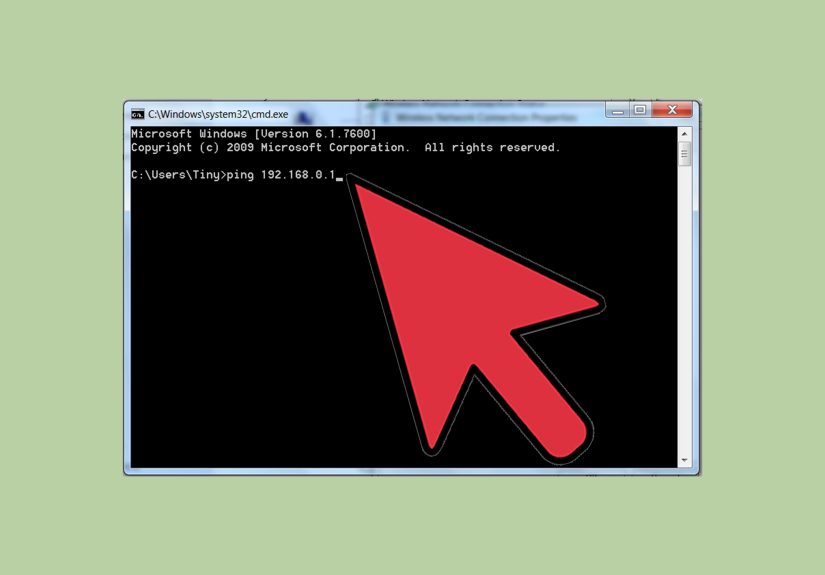
- Open Command Prompt and test:
- From PC1:
ping 192.168.50.2 - From PC2:
ping 192.168.50.1
- From PC1:
- Turn on file sharing and share a folder if you want transfers.
Pro Tips for Better Results
- If the link won’t come up, try another cable first (seriously, cables are sneaky).
- Set Ethernet adapter Speed & Duplex to Auto Negotiation if it was changed manually.
- Use
\IP-AddressShareNameif the computer name doesn’t resolve.
Way 4: Create a Temporary Wireless LAN with a Laptop Hotspot (Great for Travel)
No router? No switch? One Windows laptop can create a temporary Wi-Fi network using Mobile Hotspot, and the other computer can join it. This gives you a quick, portable local network. It’s not as robust as a dedicated router, but it’s very handy in a hotel room, workshop, or temporary office.
What This Method Can Do
- Create a quick two-computer wireless LAN
- Share an internet connection (Ethernet, Wi-Fi, or cellular) from one Windows device
- Enable file transfers and local access between the two computers
How to Set It Up (Windows Hotspot Host)
- On the host Windows PC, go to Settings > Network & Internet > Mobile hotspot.
- Choose the connection to share (Ethernet/Wi-Fi/cellular if available).
- Set a network name and password.
- Turn on Mobile Hotspot.
- On the second computer, connect to that Wi-Fi network.
- Set the network as Private if you plan to use sharing features.
- Turn on network discovery and file sharing if needed.
Limitations to Know
- Performance depends on the host PC’s Wi-Fi hardware
- Not ideal for very large or frequent file transfers
- The host computer must stay awake and connected
For quick file transfers between Windows PCs, Nearby Sharing can also help (it uses Bluetooth and/or Wi-Fi), but it’s a feature for sending filesnot a full replacement for a proper LAN setup.
How to Turn On File Sharing (Windows) for Any LAN Method
No matter which connection method you use, file sharing usually fails for the same reasons: wrong network profile, discovery turned off, or the folder isn’t actually shared. Here’s the short version that works in most cases:
- Set the network profile to Private.
- Open advanced sharing settings and turn on:
- Network discovery
- File and printer sharing
- Share a folder:
- Right-click folder > Properties > Sharing
- Choose users/permissions
- On the other computer, open:
\ComputerNameor\ComputerNameShareName
Some home users disable password-protected sharing for convenience, but for better security, keep it on and use local user accounts or Microsoft accounts where possibleespecially if the network is not strictly private.
Cross-Platform Notes (Windows, Mac, Linux)
Windows + Mac
macOS supports SMB file sharing, which makes it possible to share folders with Windows computers. On a Mac, you can enable File Sharing and turn on SMB in sharing options. If Windows can’t connect, double-check the username/password and make sure both systems are on the same LAN.
Windows + Linux
Linux systems commonly use Samba to implement SMB file sharing. Once Samba is configured on Linux, Windows can access the share much like another Windows machine. This is great for home labs, media servers, and developers juggling multiple operating systems.
Common LAN Problems (and How to Fix Them)
1) The Computers Can’t See Each Other
- Make sure both are on the same network/subnet
- Set the network profile to Private
- Turn on network discovery
- Try accessing by IP address instead of computer name
2) Ethernet Is Connected but No Link or Very Slow
- Try a known-good cable
- Check Ethernet port lights (if available)
- Update NIC drivers and router/switch firmware
- Set adapter Speed & Duplex to Auto Negotiation
3) File Sharing Prompts for Credentials or Fails
- Use the correct username/password from the host computer
- Confirm share permissions and NTFS permissions
- Temporarily test with firewall/security software settings (carefully)
- Map the share using
\IPShareNameif name resolution is unreliable
4) Nearby Sharing Is Slow
Nearby Sharing may fall back to Bluetooth, which is much slower than Wi-Fi. Keep both devices on the same Wi-Fi network and close enough together to improve results.
Security Tips for a Safer Two-Computer LAN
- Use Private profile only on networks you trust
- Share only the folders you need (not your entire drive unless you really mean it)
- Use passwords for shared accounts whenever possible
- Turn off sharing when you’re done on temporary networks
- Keep Windows/macOS/Linux updates current
Conclusion
The best way to set up two computers for LAN depends on your goal:
- Use a router for the easiest everyday setup
- Use a switch for a stable wired LAN (especially if you’ll expand later)
- Use a direct Ethernet cable for fast, simple peer-to-peer transfers
- Use a mobile hotspot for a portable temporary wireless LAN
Once the connection is live, most problems come down to settings: Private profile, network discovery, file sharing, and permissions. Get those right, and your two-computer LAN becomes less “mystery box” and more “done in 10 minutes.”
Extended Experience Notes (Field Scenarios and Lessons Learned)
In real-world setups, the biggest surprise is how often the physical connection is not the problem. People usually suspect the cable first (and yes, sometimes the cable is guilty), but more often the issue is a tiny Windows setting hiding in plain sight. A common example: two laptops are connected to the same router, both have internet, but neither can see the other. The fix is often just changing the network profile from Public to Private and turning on network discovery. It feels anticlimactic, but that’s networking for youhours of detective work, solved by one toggle.
Another common experience happens in creative workflows. Imagine a video editor with a desktop workstation and a laptop for travel. Cloud sync is convenient for documents, but when you need to move a 60 GB project folder, cloud uploads suddenly feel like mailing a package by carrier pigeon. A direct Ethernet LAN or a small switch-based wired LAN can make a huge difference. Transfers become faster, more predictable, and less dependent on internet speed. People who work with media, backups, or virtual machines usually become fans of wired LANs very quickly.
Travel setups are where the hotspot method shines. In temporary spaceshotels, events, classrooms, or job sitesyou may not have access to a router, and even if you do, you might not want to mess with it. Using one Windows laptop as a mobile hotspot can create a quick local network for a second machine. It’s not always the fastest method, but it can be the difference between “we can work now” and “we’ll figure it out later.” The main lesson here is to keep expectations realistic: it’s excellent for quick transfers, remote troubleshooting, or sharing a connection, but not the best choice for constant heavy traffic.
Mixed-device environments also create interesting experiences. Windows-to-Mac or Windows-to-Linux file sharing can work beautifully through SMB, but credential issues are common the first time around. Many users assume the network is broken when the real issue is account permissions. Once the shared folder, user permissions, and SMB settings are aligned, it usually works reliably. This is why naming computers clearly and keeping a simple checklist (Private profile, discovery on, share permissions, correct login) can save a lot of time.
Finally, one of the most valuable lessons in two-computer LAN setups is that simplicity wins. Start with the easiest method that fits your goal. If both computers are already on the same router, use that. If you need speed and stability, go wired. If you need portability, use a hotspot. If something fails, test one layer at a time: cable/link, IP address, ping, sharing settings, permissions. Networking feels intimidating when everything is checked at once, but when you troubleshoot step by step, it becomes surprisingly manageable. And once you set up a working LAN the first time, the second time feels less like wizardry and more like muscle memory.